


Scanner Manuals
Scanner manuals are the most ignored documents in most warehouses. This guide was last reviewed in July 2025 and covers what those manuals actually contain, which parts matter for daily operations, and how to use them to get clean data into your inventory system.
Published 13 August 2026. Reviewed and updated 15 September 2026.
Book a callWhat Do Scanner Manuals Contain, and Why Do They Matter?
A barcode scanner manual is the printed or digital guide that ships with every scanner. It covers hardware layout, initial scanner setup, scanning modes, barcode symbology (the type of barcode a scanner can read), programming barcodes, and error codes. Most warehouses receive one and never open it.
Reviewed September 2026. Each figure comes from the assumptions stated beside it, so you can substitute your own and the arithmetic still holds.
The arithmetic is worth doing before the software conversation. 3 people spending 6 hours a week between them chasing the same questions, at 22 dollars an hour, is 936 hours a year of paid time spent confirming what a system would already know. Over 3 years that is 2,808 hours.
That is a real cost. The IRS is direct about why inventory accuracy is not optional: "To figure taxable income, you must value your inventory at the beginning and end of each tax year," according to IRS Publication 538.
A scanner feeding bad data into your counts makes that valuation unreliable from the start.
Most scanner manuals address engineers, not warehouse staff. They run 150 to 300 pages, use dense technical language, and bury the useful parts.
Teams default to trial and error instead. That leads to missed features, wrong scan modes, and scanners that slow down receiving, picking, and shipping rather than speeding them up.
Small operations feel this more than large ones. There is no IT department to catch a misconfigured scanner before it causes 3 people to spend 2 extra hours a week on manual corrections.
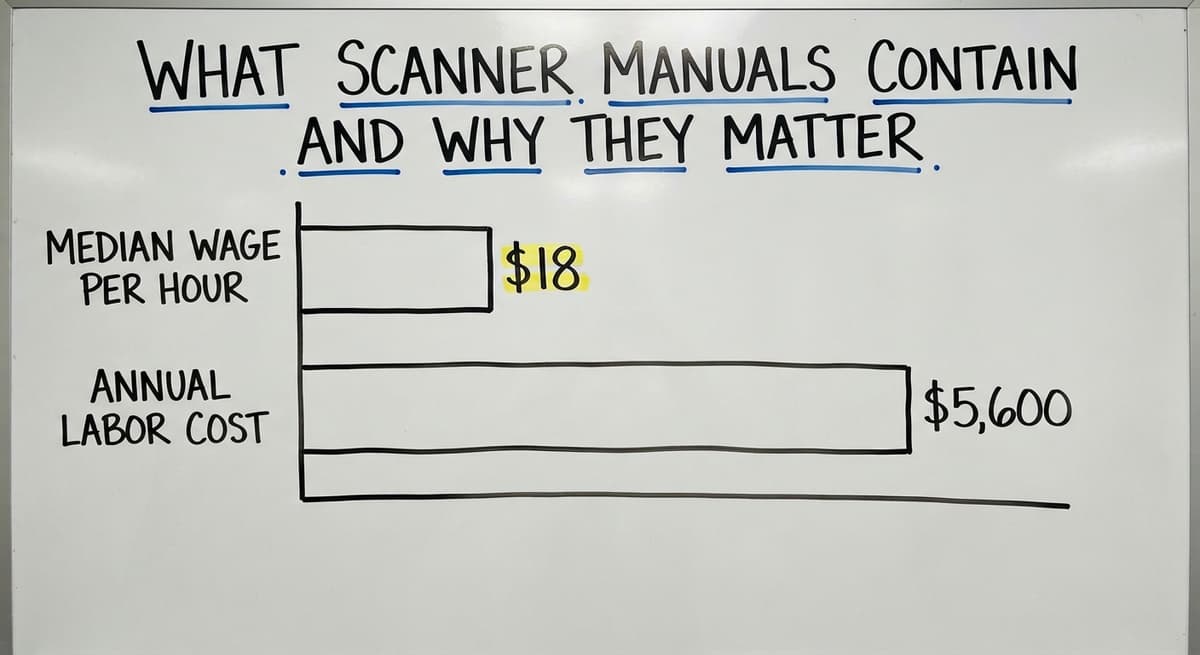
At the median wage for stock clerks and order fillers of around $18 an hour, that is over $5,600 a year in labor doing work a correctly set scanner would remove.
Would you rather have it built around your operation?
The first look is free. If you would rather not compare products, describe how your operation already works and we build the system around it.
No build cost. You see it running on your own process first, and the monthly subscription starts only once it is live.
Book a callThe Key Sections Inside Any Barcode Scanner Manual
Every scanner manual follows a similar structure. Knowing where to look saves time.
Hardware overview covers the buttons, ports, indicator lights, and battery. This is worth reading once so your team knows what each light color means before a scanner stops working mid-shift.
Initial setup and pairing walks through connecting the scanner to a base station or host device. Wireless scanners need a pairing step that varies by brand. Skipping this section is the most common reason a new scanner fails on day one.
Scanning modes include single scan (one press, one read), continuous (reads until you release), and presentation (reads anything placed in front of it). The wrong mode slows throughput or causes double-reads.
Programming barcodes are special barcodes printed inside the manual itself. Scanning one changes how the device behaves. This is one of the most useful and overlooked features in any scanner manual.
Scan the right barcode and you change the output format, add a carriage return, or switch which barcode types the scanner reads. No software, no cables, no IT ticket.
Barcode symbology tables list which types the scanner can read: Code 128, Code 39, UPC-A, QR Code, Data Matrix, and others. Scanners have some symbologies turned off by default.
Wholesale and distribution operations almost always need Code 128 active for shipping labels. The manual shows which are enabled and how to turn others on by scanning a programming barcode.
How Do I Set a Suffix Using the Scanner Manual?
A suffix is a character the scanner sends after the barcode data, such as Enter or Tab. Without one, a scan drops data into a field but does nothing else. Your team has to press Enter manually every time.
Setting a suffix means each scan moves the cursor to the next field automatically.
A prefix works the same way but sends a character before the data. Both are set by scanning programming barcodes from the manual. Getting this right removes a keystroke from every single scan across every shift.

Zebra and Honeywell Scanner Manuals: What Is Different Between Them?
Zebra and Honeywell are the 2 most common brands in warehouse and distribution environments, and their manuals follow different structures.
Zebra scanner manuals are detailed and include full programming barcode sheets. Zebra also offers a free tool called 123Scan that lets you configure a scanner through a desktop app rather than scanning barcodes from a page.
The manual is still worth knowing for troubleshooting, but 123Scan handles most day-to-day scanner setup tasks faster.
Honeywell scanner manuals use a different programming barcode layout and their quick-start guides are more beginner friendly than Zebra's. Honeywell's EZConfig tool mirrors what 123Scan does for Zebra.
If your operation runs a mix of both brands, keep both tools installed and both manuals accessible as PDFs so any team member can pull them up.
Datalogic and Socket Mobile also publish full manuals and have their own setup tools. The approach is the same across all of them: find the model number on the back of the scanner, search the manufacturer's support site, and download the PDF.
Is the comparison easier when one option is built for you?
Yes. Off-the-shelf means fitting your process to the software, and custom is the other way round. The first look costs nothing.
Book a callWhat Do the Beep Codes and LED Colors on My Scanner Mean?
Scanners signal problems through beep patterns and LED colors. A single high beep means a good read.
A low beep or a series of beeps means a failed read, low battery, or out-of-range condition. The manual includes a table that maps each combination to a specific error.
Knowing these codes saves real time. A scanner that beeps three times and flashes red is not broken. It may just be out of pairing range or need a battery charge.
Without the manual, teams swap hardware or call for help when a 10-second fix would do.

Is the Manual Enough, or Do You Need More Support?
For most day-to-day tasks, the manual covers what you need. Firmware updates, network setup, and software integration go beyond it. Manufacturer support lines and online communities handle those gaps.
The deeper issue is that a scanner configured correctly is only useful if the inventory software receiving its data is set up to match.
A barcode inventory system is only as reliable as the data going into it. Bad scanner setup means manual corrections, double entries, and stock count errors that compound over time.
For small distributors running QuickBooks, clean scan data prevents the spreadsheet pileup that builds when scans drop into the wrong field or carry the wrong format.
The NIST Manufacturing Extension Partnership frames this as a supply chain process problem, not a hardware one: the scanner is one link, and every link has to be configured to pass clean data to the next.
Connecting your scanner setup to a warehouse receiving process improvement plan and then to your inventory software is the right sequence. The scanner manual is step one.

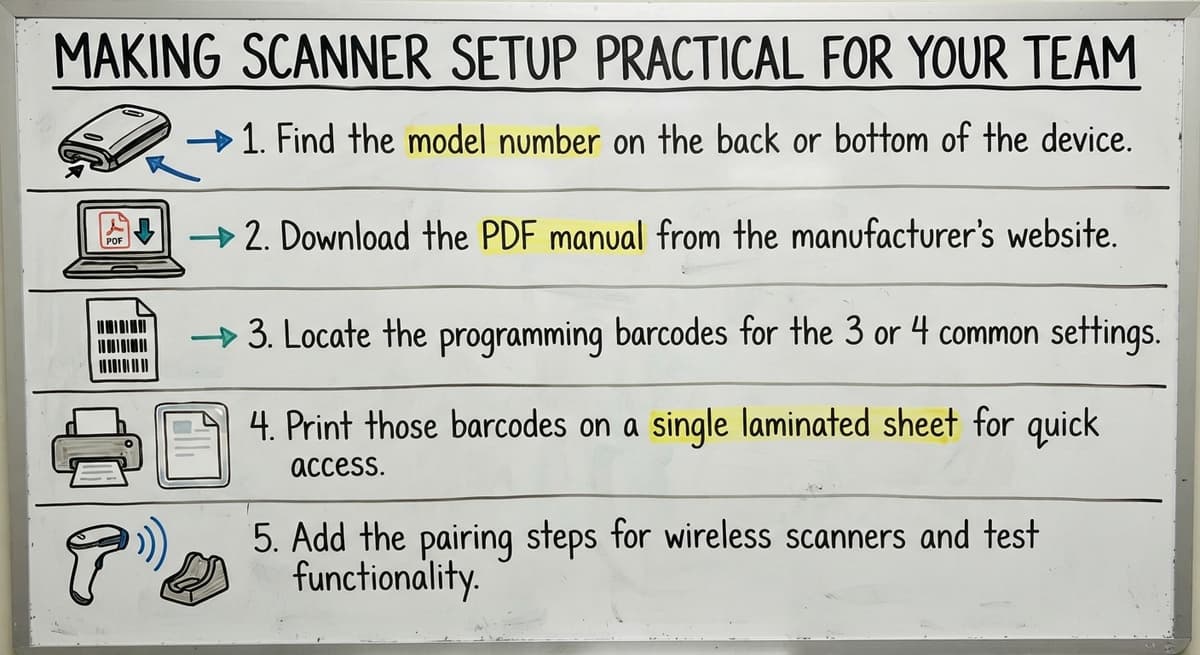
Making Scanner Setup Practical for Your Team
A 200-page manual is not a training document. Here is a faster path.
- Find the model number on the back or bottom of the scanner.
- Download the PDF manual from the manufacturer's support site.
- Locate the programming barcodes for the 3 or 4 settings your operation actually needs: suffix, symbology, and scan mode.
- Print those barcodes on a single laminated sheet and keep it near the charging station.
- Add the pairing steps for wireless scanners and the beep code table for common errors.
That sheet removes the barrier of reading the full manual for everyday tasks. New staff can pair and configure a scanner in under 5 minutes without IT help.
Most warehouses already own scanners that are not configured to their potential. Spending an hour with the manual unlocks faster scan modes, correct symbology settings, and suffix behavior the team never knew was possible.
A custom inventory software setup built around your actual workflow makes those gains repeatable and permanent.
Before buying new hardware, check whether your current scanners support the barcode types your suppliers and carriers use, whether the manufacturer provides a setup tool alongside the manual, and whether the scanner will pass data correctly to your existing or planned inventory software.
The answer to all 3 questions is in the manual you already have.
Frequently asked questions
What is a scanner manual and what does it contain?
A scanner manual is the guide that ships with a barcode scanner. It covers hardware layout, initial setup, scanning modes, programming barcodes, barcode symbology tables, and error code references.
Most run 150 to 300 pages, but only a handful of sections matter for daily warehouse use.
How do I use programming barcodes to configure my scanner?
Programming barcodes are special barcodes printed inside the manual itself. Point your scanner at one and scan it the same way you would scan a product barcode.
The scanner reads it and changes its own settings instantly. No software or cables are needed. Common uses include setting the scan mode, enabling a barcode symbology, or adding a suffix character.
Where do I find the manual for my barcode scanner?
Turn the scanner over and find the model number printed on the back or bottom label. Go to the manufacturer's support or downloads page and search that model number.
Zebra, Honeywell, Datalogic, and Socket Mobile all publish full PDF manuals. Download the PDF so your whole team can access it without hunting for the paper copy.
What barcode types does my scanner support and how do I enable them?
The barcode symbology section of the manual lists every type the scanner can read, such as Code 128, Code 39, UPC-A, QR Code, and Data Matrix. Some are enabled by default and some are not.
Scan the programming barcode for the symbology you need to turn it on. Wholesale and distribution operations almost always need Code 128 active for carrier shipping labels.
What is a suffix and how do I set one up using the scanner manual?
A suffix is a character the scanner sends after the barcode data, such as Enter or Tab. It moves the cursor to the next field automatically so your team does not have to press a key after every scan.
Find the suffix programming barcodes in your manual, scan the one for the character you need, and the scanner will send it after every read from that point on.
How do I pair a wireless scanner using the manual?
The wireless section of the manual walks through pairing the scanner to its base station or a Bluetooth host. The steps vary by brand but involve scanning a pairing barcode from the manual while the base station is in pairing mode.
The manual also covers the scanner's range limit and what happens when it goes out of range, which prevents lost scans during busy shifts.
What is the difference between Zebra and Honeywell scanner manuals?
Both cover the same topics but use different programming barcode layouts. Zebra manuals are more detailed and pair with the free 123Scan setup tool.
Honeywell quick-start guides are easier for new staff, and Honeywell's EZConfig tool works the same way as 123Scan. If you run both brands, keep both tools and both PDF manuals accessible.
How can I make scanner setup easier for my warehouse team?
Pull the 3 or 4 programming barcodes your operation actually needs from the full manual. Print them on one laminated sheet and keep it at the scanner charging station.
Add the pairing steps for wireless scanners and the beep code table for common errors. This lets any team member set up or reset a scanner in minutes without reading the full manual.
How do I find my scanner's model number?
It is printed on the label under the handle or on the base, next to the serial number. Most scanners also report it in the setup app, and scanning the model barcode in the manual's first pages reads it back.
Why is my scanner not detected by my computer?
The 3 usual causes: the scanner is in the wrong interface mode (USB HID is the one that works without drivers), the cable or dongle is not seated, or a Bluetooth scanner has paired with another device. The manual's programming barcodes reset the mode in one scan.
Where can I download a scanner user manual?
From the maker's support site by model number, as a PDF. Keep a copy in the shared drive: the programming barcodes inside it are the only way to change settings on most scanners.
What is in a free first look?
A 30 minute call, your operation mapped, and a clear picture of what we would build. No obligation and nothing to install.
Book a callRelated guides
The rest of this guide, for the parts of the job this page does not cover.
Guides
- Scanning Manual
- 2d Image Barcode Scanner
- Upc Scanner Gun
- Scanner Inventory Software
- Quickbooks Inventory Scanner
- Aml Scanners
- Inventory Management Software Barcode Scanner
- Warehouse Scanner System
- Imager Barcode Scanner
- Free Inventory Management Software with Barcode Scanner
- 2d Usb Barcode Scanner
- Barcode Scanner App Ios
- Barcode Scanner Description
- 2d Wireless Barcode Scanner
- 2d Imaging Barcode Scanners
- Barcode Scanner Inventory System
- 2d Imager Barcode Scanner
- Manual Inventory System
- Manual Inventory Management
- Barcode Words