


Quickbooks Inventory Scanner
A QuickBooks inventory scanner links a physical barcode scanner to your QuickBooks records. Scan an item, and QuickBooks updates the count. No paper. No re-entry. It works for receiving, picking, and physical counts. The right setup depends on your QuickBooks version and how your warehouse actually runs.
Reviewed September 2026. Each figure comes from the assumptions stated beside it, so you can substitute your own and the arithmetic still holds.
Published 19 August 2026. Reviewed and updated 15 September 2026.
Book a callWhat Does a QuickBooks Inventory Scanner Actually Do?
A QuickBooks inventory scanner reads the barcode on a product and matches it to an item record in QuickBooks. That match can update a quantity, create a transaction, or confirm a pick, depending on the workflow.
The scanner itself is just a reader. The real work happens in the software layer between the scanner and QuickBooks. That layer translates a barcode into a SKU, finds the right item record, and writes the change.
Some setups do this natively. Others need a bridge application to make the connection.
The goal is simple: one scan replaces a written note, a spreadsheet row, and a manual entry.
Would you rather have it built around your operation?
The first look is free. If you would rather not compare products, describe how your operation already works and we build the system around it.
No build cost. You see it running on your own process first, and the monthly subscription starts only once it is live.
Book a callWhy Does Manual Inventory Entry Cost More Than It Looks?
Most small distributors run the same process: staff count stock by hand, write numbers on a clipboard, then someone re-keys those numbers into QuickBooks. Each handoff is a chance for a wrong SKU, a missed item, or a duplicate entry.
Those errors have real costs. A wrong count leads to a bad buy order. A bad order means a short shipment. A short shipment means an upset customer.
GS1, the global standards body behind barcodes, notes that "barcodes are the most widely used automatic spotting technology in the world" because they remove the transcription step that causes most of these errors. You can read more about how barcode standards work at GS1.
This is not a sign of poor management. It is what happens when a business grows past the scale that paper handles well.
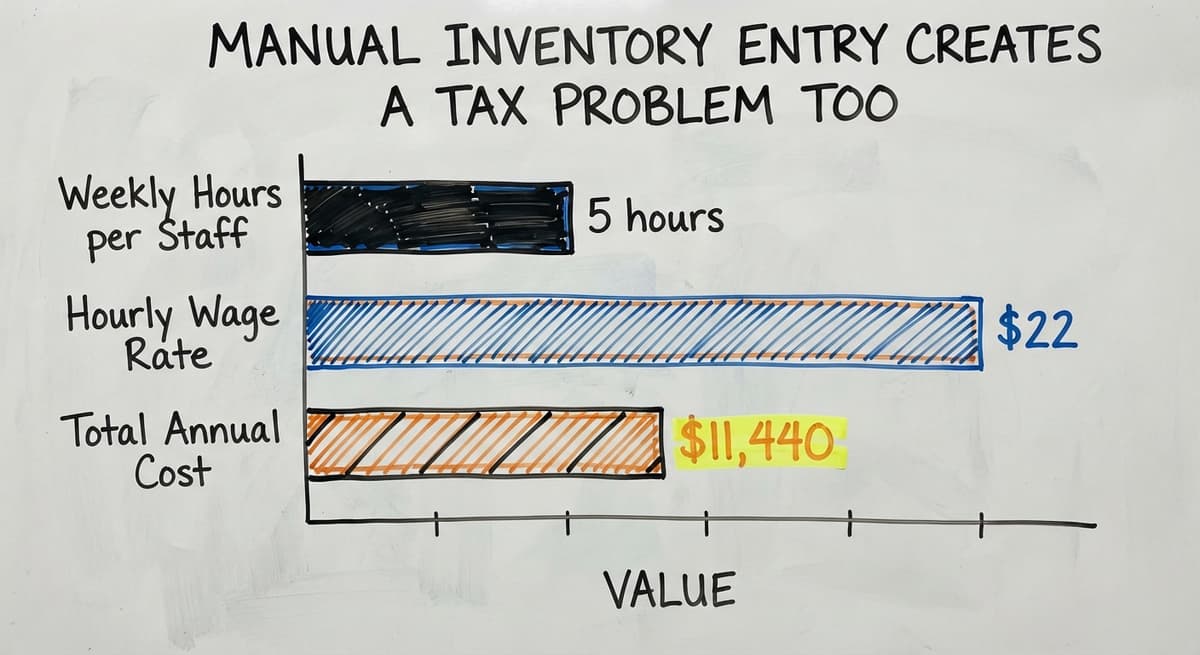
Manual Inventory Entry Creates a Tax Problem Too
The IRS adds a legal dimension. IRS Publication 538 states: "To figure taxable income, you must value your inventory at the beginning and end of each tax year." A count you cannot trust is a tax problem as well as an operations problem.
Cost check: 2 staff spending 5 hours a week re-entering inventory data at $22 an hour (near the current median for stock clerks per the Bureau of Labor Statistics) is $11,440 a year. That figure does not count the orders fixed after the fact.
How Does a Barcode Scanner Connect to QuickBooks?
A barcode scanner connects to QuickBooks through one of 3 paths: a USB cable, a Wi-Fi network, or a middleware application that sits between the two.
- USB (direct): The scanner plugs into a computer running QuickBooks Desktop. It acts like a keyboard. Scan a barcode and the number appears in whatever field is active. Simple, but the staff member must be at the desk.
- Wi-Fi (wireless handheld): The scanner or mobile computer connects to the network and talks to a server-side application, which then writes to QuickBooks. This works on the warehouse floor.
- Middleware software: A bridge app receives scan data and translates it into QuickBooks API calls. This is the most flexible path and the one most third-party tools use.
Which Connection Method Is Available Depends on Your QuickBooks Version
QuickBooks Desktop accepts direct USB input and supports more native inventory fields. QuickBooks Online does not accept raw scanner input. It needs a connected app that uses the QuickBooks API to write data.
Knowing which version you run work out which connection method is available to you.
Is the comparison easier when one option is built for you?
Yes. Off-the-shelf means fitting your process to the software, and custom is the other way round. The first look costs nothing.
Book a callQuickBooks Desktop vs QuickBooks Online for Scanning
QuickBooks Desktop and QuickBooks Online are 2 different products with different scanning capabilities.
QuickBooks Desktop has a richer native inventory module. It supports item receipts, assembly builds, and inventory adjustments out of the box. A USB scanner can feed data directly into Desktop screens. Many warehouse teams start here because the setup is straightforward.
QuickBooks Online trades depth for accessibility. Its inventory tools cover basic stock tracking but rely on third-party apps for scanning support. If your team uses QuickBooks Online, you will need a connected app from the QuickBooks App Store before any scanner becomes useful.
Neither version is wrong. The choice comes down to how the business was set up originally. Check your login screen: if it opens in a browser, you are on Online. If it installs on a local machine, you are on Desktop.

Types of Scanners and What Each One Is Good For
Barcode scanner hardware falls into 3 main groups. Choosing the right one saves money and avoids frustration.
- Handheld barcode guns: Wired or wireless, these are the cheapest option. They suit a small stock room where staff stay near a computer. A USB model costs as little as $30.
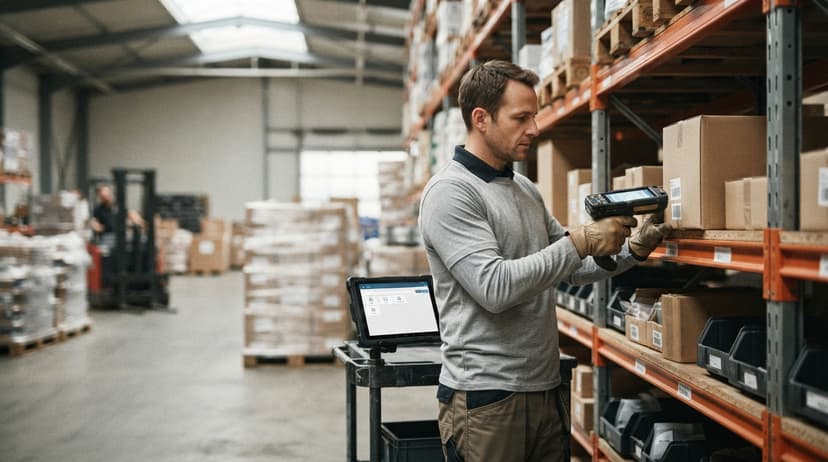
- Mobile computers (rugged handhelds): These run a small application on the device itself. Staff walk the floor, scan items, and sync data later or in real time over Wi-Fi. Built for warehouse conditions: drops, dust, and cold storage.
- Smartphone apps: A phone camera reads barcodes through an app. Low cost to start, but phone cameras are slower than laser scanners and phones are not built for warehouse wear.
1D vs 2D Barcodes and What Your Scanner Needs to Read
On barcode types: 1D scanners read the standard black-and-white striped barcodes on most retail products. 2D scanners also read QR codes and data matrix codes, which carry more data in a smaller label. Most modern scanners are 2D and backward-compatible with 1D barcodes.
Plug-and-play works for USB scanners on Desktop. Wireless scanners almost always need a software bridge.

Setting Up Barcodes and Labels for Your QuickBooks Items
A scanner can only find an item if that item has a barcode assigned in QuickBooks. This setup step is where most rollouts slow down.
Adding a Barcode to a QuickBooks Item Record
In QuickBooks Desktop, the item record has a field for a UPC or barcode number. Fill that field and the scanner can match a scan to the record.
In QuickBooks Online, the same field is available through the API, as documented in Intuit's developer reference, though the standard interface buries it.
Some businesses use the manufacturer's barcode already printed on the product. Others assign their own internal codes. Either approach works as long as every item has one and the number in QuickBooks matches the label on the shelf.
Printing Your Own Barcode Labels
When manufacturer barcodes are missing, inconsistent, or cover multiple variants under one code, custom labels fix the problem. A basic label should show the SKU, item name, barcode, and bin location. That format gives a picker everything needed without looking anything up.
Thermal label printers pair well with QuickBooks workflows. They print fast, the labels last in a warehouse environment, and the printers themselves are inexpensive.
Consistent labeling is what makes scanning reliable. One unlabeled shelf is enough to break the workflow for the staff working that aisle.
How Scanning Works Across Receiving, Picking, and Counts
How Do I Receive Inventory with a QuickBooks Scanner?
Receiving with a scanner works like this: a delivery arrives, staff scan each item, confirm the quantity, and the system matches the scan to an open buy order in QuickBooks. The on-hand count updates when the receipt is saved.
Errors caught at receiving cost almost nothing to fix. The product is right there. Errors found 3 weeks later, after the item has been picked, shipped, or lost, cost time, money, and a customer relationship.
Scanning at the dock closes the gap between what QuickBooks says arrived and what actually did.
What does it look like running on your own process?
The first thing you see is it running on your own process, at no build cost. The subscription starts once it is live and doing the job, not before.
Book a callPicking and Shipping Orders with a Scanner
Scan-to-pick means staff scan each item as they pull it for an order. The scan confirms the right product and the right quantity before the box is sealed. QuickBooks inventory drops when the transaction posts, either in real time or at the next sync.
Fewer pick errors mean fewer returns. Fewer returns mean fewer credits, fewer replacement shipments, and fewer calls to explain what went wrong. The FTC's Mail and Telephone Order Rule needs businesses to ship when promised. Accurate counts are what make that promise keepable.
Running a Physical Count with Barcode Scanning
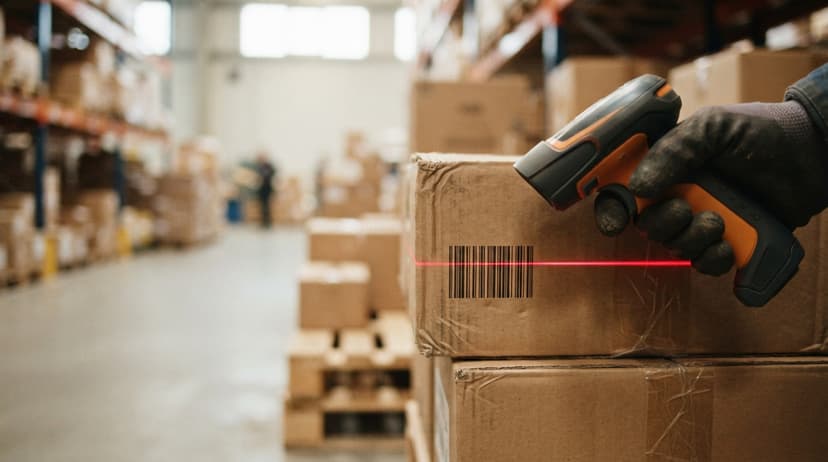
A scanner speeds up both cycle counts (counting a portion of stock on a schedule) and full physical counts. Staff walk the floor, scan each item, and the device records the quantity. No clipboards. No written tally sheets.
After scanning, the system compares what was scanned against the QuickBooks on-hand numbers. Differences show up as a list. A manager reviews and approves adjustments, which then post back to QuickBooks. The whole process is faster and the results are easier to audit.
Where Native QuickBooks Scanning Falls Short
QuickBooks was built as accounting software. Its inventory tools are solid for a business that needs to know how many units it has. They are not built for a warehouse that needs to know which bin those units are in.
The specific gaps:
- No bin or location tracking inside native QuickBooks. You know you have 40 units. You do not know they are split across 3 locations.
- No offline scanning. If the connection drops, work stops or data is lost.
- Limited mobile support in QuickBooks Desktop. The browser-based QuickBooks Online works on a phone but lacks the depth for complex warehouse tasks.
- No serial number scanning workflow that guides staff through a process step by step.
These Gaps Grow With Order Volume
These gaps grow as order volume climbs. A business shipping 20 orders a day may not feel them. A business shipping 200 will. The NIST Manufacturing Extension Partnership recommends reviewing supply chain processes against actual volume, not planned volume, before choosing tools.

Third-Party Apps vs a Custom Scanning Solution
What Third-Party Apps Add
A QuickBooks-integrated inventory or warehouse management add-on sits between the scanner and QuickBooks. It adds the features QuickBooks lacks: bin locations, serial number tracking, guided pick lists, and receiving workflows that match a buy order line by line.
Off-the-shelf apps work well for standard warehouse processes. If your receiving workflow matches what the app was designed for, setup is fast and cost is low.
Look for apps that list your QuickBooks version as supported, offer offline ability, and have clear records for the hardware you plan to use.
The limit of off-the-shelf tools is custom logic. If your business has unique receiving rules, special return processes, or workflows that no standard app covers cleanly, you will spend more time working around the app than using it.
When a Custom Build Makes More Sense
A custom scanning solution makes sense when the operation has rules that no packaged app handles well.
Signs include: multiple warehouse locations with different receiving rules, custom order workflows tied to customer contracts, or a returns process that needs steps no app supports without heavy setup.
A custom build does not replace QuickBooks. QuickBooks stays in place as the accounting and inventory record.
The custom layer handles the warehouse floor: it runs on the handheld device, guides the staff member through each step, and pushes clean data to QuickBooks when the task is done.
Not sure this is the right shape for your operation?
The call is free. Describe how the work runs today. We map it on a call and show you what it would look like built around that, before you spend anything.
Book a callHow a Custom Build Compares to a Full ERP
A custom solution is a practical middle ground between doing nothing and buying a full ERP (enterprise resource planning system, which replaces QuickBooks entirely). A custom solution built around an existing QuickBooks setup costs far less than an ERP migration and causes far less disruption.
A simple example: A wholesale distributor with 20 staff runs a custom scanner app on rugged handhelds. A staff member scans a pallet at the dock.
The app checks the buy order, flags any discrepancy, and asks for confirmation. One tap posts the receipt to QuickBooks. The staff member never touches a keyboard. The QuickBooks file looks exactly as it always did.
What to Look for and What to Avoid
Choosing the Right Setup
The right QuickBooks inventory scanner setup fits your workflow, not just your budget. Key questions to ask before choosing:
- Does it support your QuickBooks version (Desktop or Online)?
- Can it work offline if your Wi-Fi drops?
- Is the hardware rated for your environment (temperature, drops, dust)?
- Does the receiving workflow match how your team actually receives goods?
- How long does staff training take, and who provides it?
Fit to actual workflow matters more than a feature list. A scanner system with 50 features your team does not use is harder to keep than a simple one that does 5 things well.
Common Mistakes to Avoid
Most rollouts that stall share the same problems:
- Skipping item setup: Scanning before every item has a barcode in QuickBooks means the scanner finds nothing. Clean item data first.
- Leaving shelves unlabeled: One unlabeled section breaks the workflow for the staff covering it. Label everything before go-live.
- Choosing fragile hardware: Consumer-grade scanners and phones break in warehouses. Buy hardware rated for the environment.
- No clear workflow: Scanning without a defined process leads to double entries or missed syncs. Write the steps before training anyone.
- Skipping change management: Staff need a reason to trust the scanner over the paper method they know. Show them where errors were caught and what that saved.
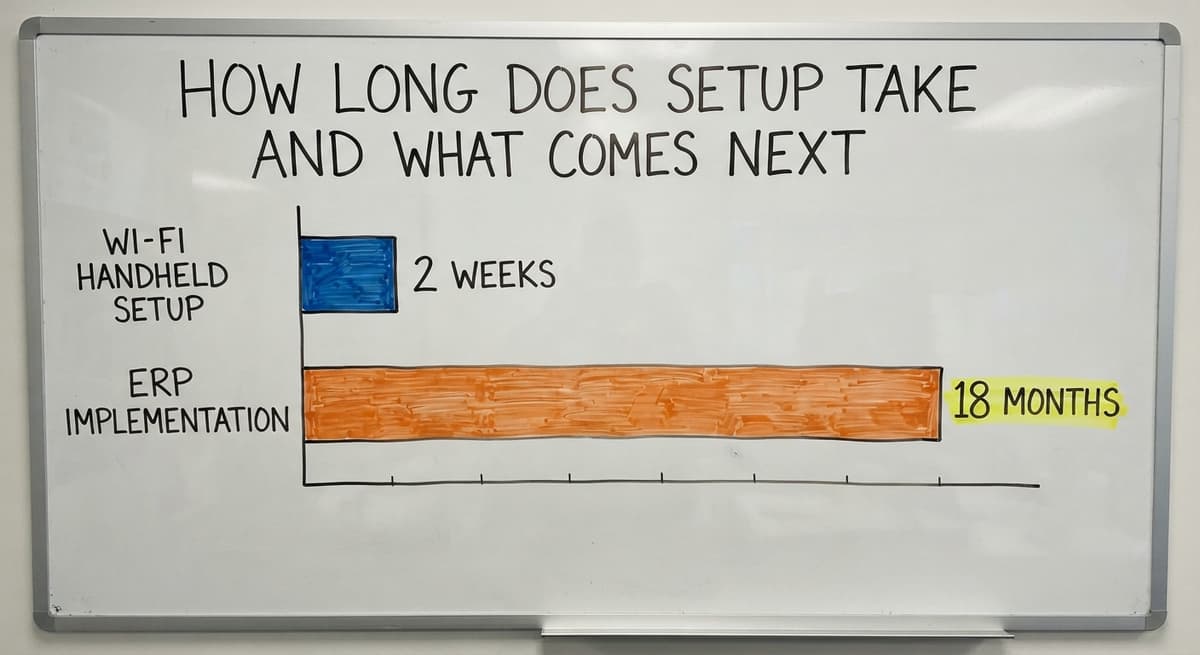
How Long Does Setup Take and What Comes Next
A simple USB scanner on QuickBooks Desktop can go live in a day or 2, assuming item barcodes are already in the system.
A Wi-Fi handheld with a middleware app takes 1 to 2 weeks. A custom build takes weeks, not months, and is still far shorter than an ERP rollout, which commonly runs 6 to 18 months.
Item data cleanup is almost always the longest part. If 4,000 SKUs need barcodes assigned, that work takes time no matter which scanner you choose.
A scanner can only find an item if that item has a barcode assigned in QuickBooks, and this setup step is where most rollouts slow down.
Roll Out Scanning in Phases, Starting With Receiving
A phased rollout works well. Start with receiving. Once that is stable, add picking. Add physical counts last. Each phase builds staff confidence and surfaces problems at a scale that is easy to fix.
If you want to add scanning to your QuickBooks setup, start by mapping your current receiving workflow on paper. Find the step where errors most often appear. That step is where scanning will return the most value fastest.
A developer or specialist who has built around QuickBooks for small distributors can help you match the right approach to what your operation actually does, without pushing you toward tools that are larger or more complex than you need.
Frequently asked questions
What scanner is compatible with QuickBooks?
Most USB barcode scanners work with QuickBooks Desktop out of the box because they act like a keyboard. For QuickBooks Online or wireless scanning on the warehouse floor, you need a scanner that pairs with a compatible middleware app or QuickBooks-integrated add-on.
Look for scanners that list your QuickBooks version as supported. The major scanner makers all work in warehouse settings, but compatibility depends on the software layer, not the hardware brand alone.
What is the best inventory scanner system for a small business?
There is no single best system. The right choice depends on your QuickBooks version, your warehouse size, and how complex your receiving and picking workflows are. A small business with simple stock tracking and QuickBooks Desktop can start with a $30 USB scanner.
A business with multiple locations or custom workflows needs a middleware app or a custom-built solution. Start by mapping your biggest pain point, then find the tool that fixes that specific problem.
Is there a way to track inventory in QuickBooks?
Yes. QuickBooks has built-in inventory tracking that records item quantities, costs, and transactions. QuickBooks Desktop offers more depth, including item receipts and inventory adjustments. QuickBooks Online covers basic stock levels.
Neither version offers bin-level location tracking or guided warehouse workflows natively. For those features, you need a third-party app or a custom solution connected to QuickBooks through the API.
Does QuickBooks have inventory tracking software?
QuickBooks includes inventory tracking as part of its accounting software, not as a standalone warehouse system. It records quantities on hand, costs, and inventory-related transactions. It does not manage bin locations, guide staff through pick lists, or support offline scanning.
Businesses that need those features add a QuickBooks-integrated inventory app or a custom scanning layer on top of the existing QuickBooks setup.
Can I use a wireless barcode scanner with QuickBooks?
Yes, with the right software in place. A wireless scanner on its own cannot write directly to QuickBooks. It needs a middleware application or a connected inventory app to translate scan data into QuickBooks records.
QuickBooks Desktop supports this through server-side bridge software. QuickBooks Online supports it through apps that use the QuickBooks API. The scanner hardware is the easy part; the software connection is where setup needs attention.
How do I add barcodes to my QuickBooks inventory items?
In QuickBooks Desktop, open the item record and enter the barcode or UPC number in the designated field. In QuickBooks Online, the barcode field is accessible through the API and through some third-party inventory apps.
Every item needs a barcode assigned before a scanner can find it. If your products do not have manufacturer barcodes, you can assign your own internal codes and print custom labels using a thermal label printer.
How long does it take to set up a QuickBooks inventory scanner?
A basic USB scanner on QuickBooks Desktop can be working in 1 to 2 days if your item barcodes are already set up. A wireless handheld with a middleware app takes 1 to 2 weeks including testing.
A custom-built scanning solution takes several weeks. Item data cleanup, meaning assigning barcodes to every SKU, is the longest part of any setup regardless of which approach you choose.
When should I use a custom scanning solution instead of an off-the-shelf app?
Consider a custom solution when your warehouse has rules that no standard app handles cleanly. Signs include unique receiving workflows, customer-specific order processes, multiple locations with different logic, or a returns process that needs steps no packaged tool supports without heavy workarounds.
A custom build keeps QuickBooks in place and replaces only the manual steps on the warehouse floor, at a fraction of the cost and disruption of a full ERP replacement.
Does QuickBooks Online work with a barcode scanner?
Yes, in a limited way. A USB scanner types an item code into any QuickBooks Online field, which speeds up entry. Real inventory scanning, with bin locations and pick confirmation, needs an add-on or a custom layer that writes to QuickBooks Online through its API.
How do I set up barcode scanning in QuickBooks Desktop?
In QuickBooks Desktop Enterprise with Advanced Inventory, turn on barcode scanning in the inventory preferences, assign a barcode to each item, and pair a USB or Bluetooth scanner. Pro and Premier have no native scanning, so they need an add-on.
Can I scan inventory directly into QuickBooks on my phone?
Not natively. QuickBooks mobile apps do not scan stock. A third-party app or a custom mobile screen scans on the phone and posts the movement to QuickBooks, which is how most small warehouses do it.
What is the best third-party barcode app for QuickBooks?
The one that matches your QuickBooks version and your floor: Online needs an API-based app, Desktop needs a Web Connector app.
For an operation with its own receiving and picking steps, a small custom layer fits better than a packaged app and costs about the same over 2 years.
What is in a free first look?
A 30 minute call, your operation mapped, and a clear picture of what we would build. No obligation and nothing to install.
Book a callRelated guides
The rest of this guide, for the parts of the job this page does not cover.
Guides
- Quickbooks Barcode Reader
- Scanner Inventory Software
- Inventory Management Software Barcode Scanner
- Free Inventory Management Software with Barcode Scanner
- Barcode Scanner Inventory System
- Quickbooks Inventory Management Software
- 2d Image Barcode Scanner
- Upc Scanner Gun
- Scanner Manuals
- Aml Scanners
- Warehouse Scanner System
- Imager Barcode Scanner
- 2d Usb Barcode Scanner
- Barcode Scanner App Ios
- Barcode Scanner Description
- 2d Wireless Barcode Scanner
- 2d Imaging Barcode Scanners
- 2d Imager Barcode Scanner
- Inventory Management Software with Barcode
- Inventory Tracking Barcode