


How To Use A Barcode Scanner
Last reviewed: June 2025
Published 18 July 2026. Reviewed and updated 15 September 2026.
Reviewed August 2026. Each figure comes from the assumptions stated beside it, so you can substitute your own and the arithmetic still holds.
Book a callWhat Does a Barcode Scanner Actually Do?
A barcode scanner reads the pattern of bars and spaces printed on a label. It converts that pattern into a number or short code. Then it sends that code to your computer, tablet, or software system.
The scanner itself stores nothing. It is an input device, like a keyboard. The software behind it is where the real work happens. The scanner reads. The software records, matches, and acts.
Think of it this way: the barcode is the label on a file folder. The scanner is the hand that reads it. The inventory software is the filing cabinet that knows what to do with it.
Understanding this split matters. A scanner with no system behind it just saves you from typing. A scanner connected to the right inventory software can receive a shipment, update stock levels, confirm a pick, and flag a discrepancy, all from one trigger pull.
Would you rather have it built around your operation?
The first look is free. If you would rather not compare products, describe how your operation already works and we build the system around it.
No build cost. You see it running on your own process first, and the monthly subscription starts only once it is live.
Book a callTypes of Barcode Scanners You Will Encounter
Not every scanner fits every job. Choosing the wrong type slows your team down and costs more than buying the right one from the start.
| Scanner Type | Best For | Trade-Off |
|---|---|---|
| Handheld wired (USB) | Fixed workstations, receiving desks | Cable limits movement |
| Wireless Bluetooth | Warehouse aisles, mobile receiving | Needs charging, pairing setup |
| Mobile computer scanner | High-volume operations, full Android/Windows device | Higher cost |
| Smartphone scanning app | Light use, low budget | Lower durability, slower reads |
GS1, the global standards body for barcodes, notes that "barcodes are the most widely used automatic identification technology in the world," and their barcode standards page covers every symbology your scanner may need to read, from UPC to Code 128 to QR codes.
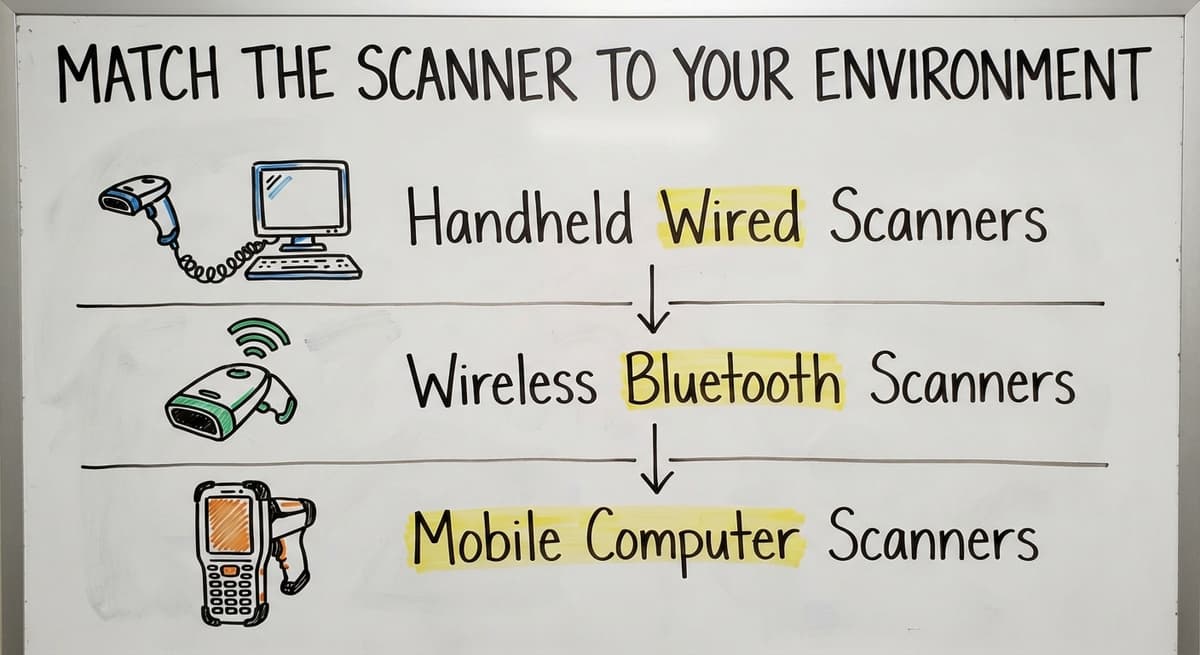
Match the Scanner to Your Environment
A cold storage warehouse needs a unit rated for low temperatures. A high-traffic dock needs something that survives drops. A small retail back office can get by with a basic USB model.
Handheld Wired Scanners
Plug a USB scanner into any computer and it works like a keyboard. No driver needed in most cases. The scanned code types itself into whatever field is active. This is the simplest setup and the right starting point for most small operations.
Wireless Bluetooth Scanners
Bluetooth scanners pair to a tablet or PC through device settings. Once paired, they work the same way as wired models, just without the cable. Charge them at the end of every shift. A dead scanner mid-receiving is a real problem.
Mobile Computer Scanners
Mobile computer scanners are full Android or Windows devices with a built-in scanner. They run warehouse apps directly on the unit.
Larger operations use them because staff can work anywhere in the building without returning to a fixed station. The cost is higher, but so is the output.
How Do I Connect a Barcode Scanner to My Computer or Software?
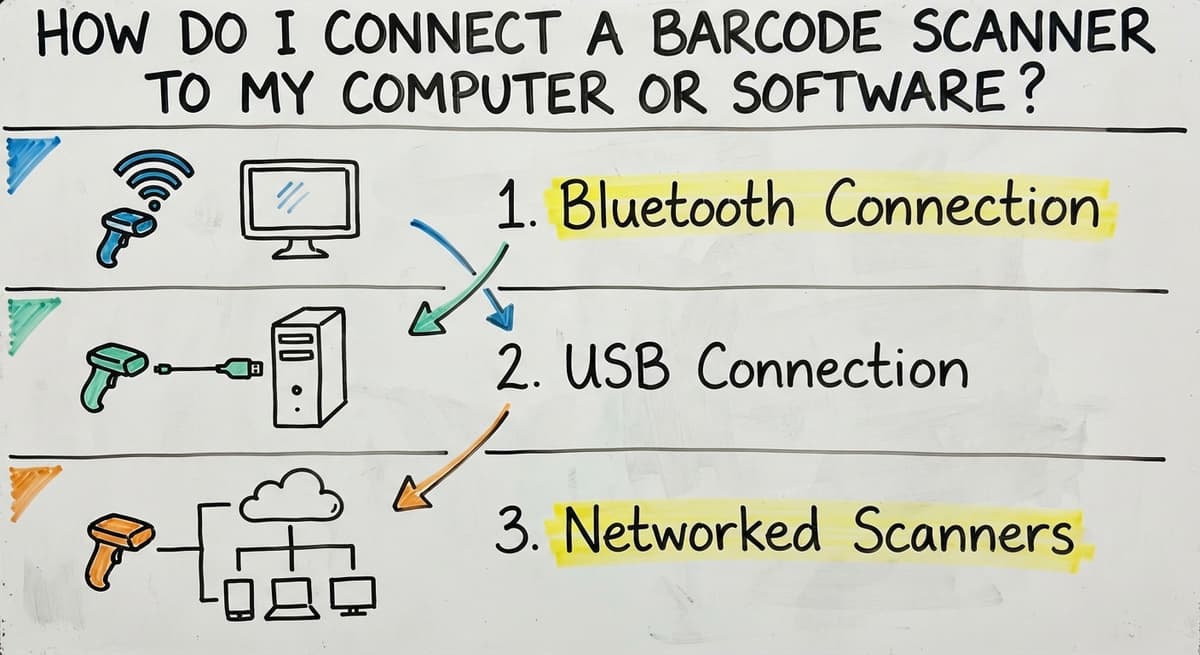
Connecting a barcode scanner is straightforward once you know what type you have. Click into the target field in your software before you scan anything. The scanner sends keystrokes to wherever your cursor sits. If no field is active, nothing is recorded.
Bluetooth Connection
- Put the scanner in pairing mode (check the manual, hold a button for 3 seconds).
- Open Bluetooth settings on your computer or tablet.
- Select the scanner from the device list.
- Open your software and click into the input field.
- Scan a test barcode.
USB Connection
- Plug the scanner into a USB port.
- Open your inventory software or a plain text editor.
- Click into the input field.
- Scan a barcode.
- Confirm the code appears in the field.
Most USB scanners are plug-and-play. Windows and Mac recognize them as keyboards. No driver install needed.
Networked Scanners
Some enterprise scanners connect through a base station with an IP address. These need configuration from your IT contact or the manufacturer's setup guide. Follow their steps exactly. A misconfigured network scanner can send data to the wrong system or no system at all.
Always run a test scan into a plain text editor first. If the right code appears, the connection works. If nothing appears, the cursor was not in an active field. If the wrong characters appear, the scanner may be set to the wrong output format.
Step-by-Step: How to Scan a Barcode
Follow these steps in order. Skipping step 1 is the most common mistake.
- Open the software field that will receive the scanned data. Click into it so the cursor is active.
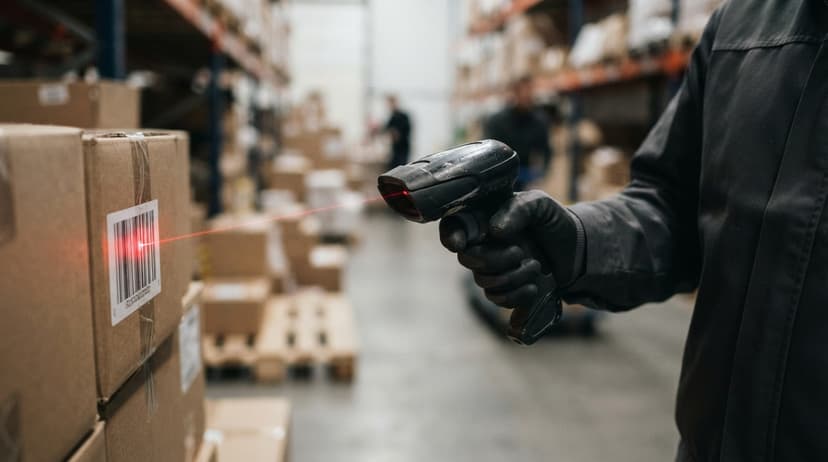
- Hold the scanner 4 to 8 inches from the barcode label.
- Keep the scanner parallel to the label surface, not at a sharp angle.
- Press the trigger and point the laser or light at the barcode.
- Wait for the beep or the green light. That confirms a successful read.
- Check that the correct code appeared in the software field.
Steady hands help. A moving scanner misreads more often. If the label is on a curved surface, flatten it with a finger before scanning.
Is the comparison easier when one option is built for you?
Yes. Off-the-shelf means fitting your process to the software, and custom is the other way round. The first look costs nothing.
Book a callWhy Is My Barcode Scanner Not Reading the Label?
A failed scan almost always has one of 5 causes. Work through them in order before calling for support.
Damaged or wrinkled labels are the most common cause. A torn or creased barcode cannot be read reliably. Replace the label.
- Glare on shiny surfaces: Tilt the scanner slightly, about 15 degrees, to reduce reflection.
- Wrong distance: Too close or too far both cause failures. Stay in the 4 to 8 inch range.
- Wrong barcode type: Not all scanners read all barcode formats. Confirm your scanner supports the symbology on the label. Common ones include Code 128, UPC-A, QR Code, and Data Matrix.
- Cursor not in a field: Click into the input box before scanning. This is easy to overlook when switching between tasks.

When Do Scan Failures Become a Pattern?
Do not let staff type codes manually when a scan fails. That defeats the purpose and introduces errors. Fix the label. If labels are failing, check your label printer settings and the material you are using.
How Do Barcode Scanners Work With Inventory Software?
The scanner sends a code string to the active field in your software. What happens next depends entirely on the system.
In a basic setup, the code appears in a search box and the user hits enter. The software pulls up the item record. The user updates a quantity by hand. This saves some typing but does not remove manual steps.

What Does a Connected Inventory System Do With Each Scan?
In a connected inventory system, the scan triggers an action automatically. Scan a receiving barcode and the system logs a receipt against the open purchase order. Scan a pick location and the system confirms the right shelf.
Scan at the packing station and the system closes the order and prints a shipping label. Each scan can trigger a receive, pick, ship, or count action. The difference between these two setups is not the scanner. It is the software.
The IRS is direct about why inventory accuracy matters: IRS Publication 538 states, "To figure taxable income, you must value your inventory at the beginning and end of each tax year." Accurate scan data feeds accurate inventory records, which feeds accurate books.
Matching the SKU to the Scan
A SKU (stock keeping unit) is the internal code your business uses to identify a product. When a scanner reads a barcode, the software matches that barcode to a SKU in its database.
If the barcode is not linked to a SKU, the scan returns an error or a blank result.
Before you scan anything into a new system, confirm that every item's barcode is mapped to its SKU. This setup step is what makes scanning useful rather than just fast.
What does it look like running on your own process?
The first thing you see is it running on your own process, at no build cost. The subscription starts once it is live and doing the job, not before.
Book a callUsing a Barcode Scanner for Receiving Inventory
Receiving is the best place to start with barcode scanning. The workflow is simple and the payoff is immediate.
- Open a purchase order or receiving screen in your inventory software.
- Scan each item as it comes off the truck.
- The system records the quantity received and updates stock levels.
- Flag any gap between the PO quantity and what was actually scanned.
- Close the receipt when all items are confirmed.
This replaces paper receiving logs and manual data entry. It also creates a time-stamped record of what arrived and when, which matters when a supplier dispute comes up.

The Labor Cost of Manual Receiving
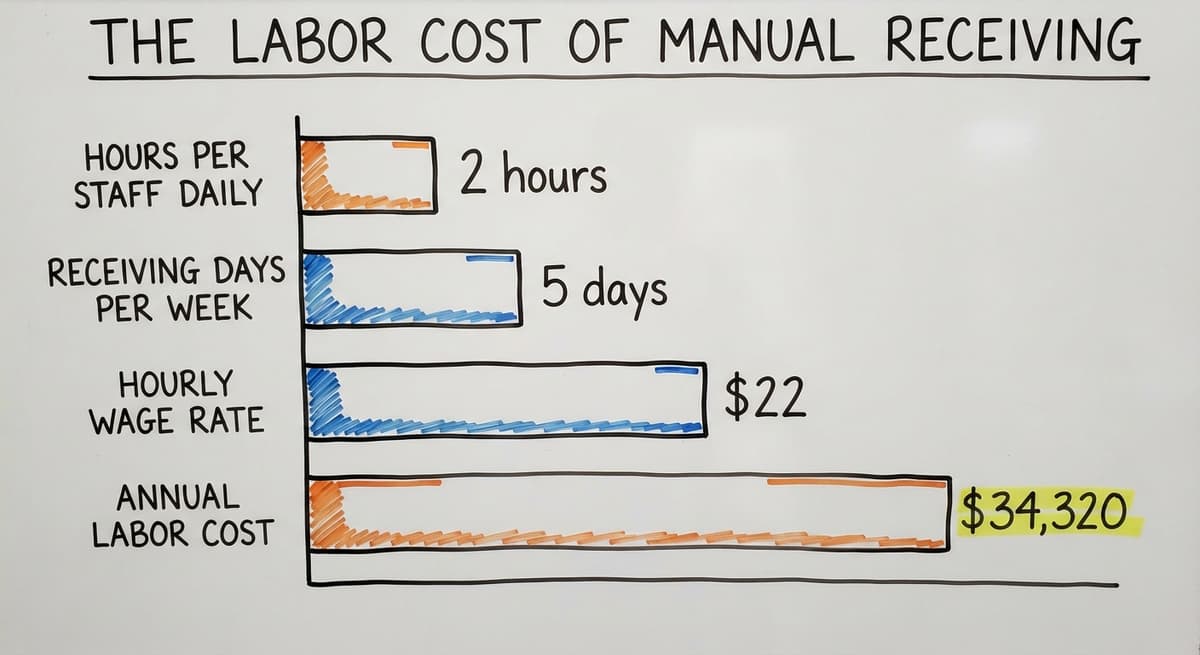
3 staff spending 2 hours each on manual receiving logs, 5 days a week, at $22 an hour (near the median wage for stock clerks and order fillers, per the US Bureau of Labor Statistics) adds up to $34,320 a year in labor on a task that scanning can cut by more than half.
For operations still using the accounting software inventory management, scanning into a connected receiving screen removes the step of re-entering data from a paper log into the accounting software after the fact. That double-entry is where errors live.
Using a Barcode Scanner for Picking and Shipping
Picking errors cost money. A wrong item shipped means a return, a reshipment, and a frustrated customer. Scanning at the pick stage catches errors before they leave the building.
- Pull up an order or pick list in your system.
- Scan the shelf location barcode to confirm you are in the right spot.
- Scan the item barcode to confirm the right product.
- The system marks the item as picked and reduces available inventory.
- Scan again at the packing station to verify the full order before it ships.
Two scan points, two chances to catch a wrong item. This is how a small team maintains accuracy at higher order volumes without adding headcount.
For a deeper look at how to label warehouse shelves and locations so this workflow runs cleanly, that setup is worth doing before you start scanning picks.
How Do I Use a Barcode Scanner for a Cycle Count?
A cycle count uses a barcode scanner to check a section of inventory and confirm that what the system shows matches what is physically on the shelf. Walk the aisle, scan each item, and let the system compare the scanned totals to the expected totals.
Here is how a basic cycle count works:
- Select a zone or product category in your inventory software.
- Walk the aisle with a scanner.
- Scan each item on the shelf.
- The system records what you found.
- Review the variance report: where the count differs from the system, investigate and correct.
Cycle Counting vs. Annual Physical Inventory
Cycle counting vs. annual physical inventory is a real choice. A full physical count shuts down operations for hours or days. Cycle counts run in small sections, regularly, without stopping the warehouse.
Regular cycle counts keep your inventory records accurate year-round. That matters for the tax valuation the IRS requires, and it matters for order accuracy. The NIST Manufacturing Extension Partnership identifies accurate inventory records as a core supply chain practice for small and mid-size manufacturers.
Not sure this is the right shape for your operation?
The call is free. Describe how the work runs today. We map it on a call and show you what it would look like built around that, before you spend anything.
Book a call
Barcode Scanner Best Practices for Warehouses and Distribution Centers
A warehouse barcode scanner is only as reliable as the habits around it. These practices keep the data clean.
- Label every location, not just every item. Scan the shelf barcode, then scan the product. This confirms the right item is in the right place.
- Use durable barcode labels rated for your environment. Cold storage, outdoor docks, and high-traffic aisles each need different label stock.
- Charge wireless scanners at the end of every shift. A dead scanner at 7 AM slows the whole receiving team.
- Train every staff member on the same scanning workflow. One person doing it differently breaks the data.
- When a scan fails, fix the label. Do not type the code by hand.
Where to Go Next for Warehouse Scanning Setup
For a full approach to setting up a warehouse inventory system that makes these habits stick, the structure of locations, labels, and workflows matters as much as the scanner itself.
A barcode inventory management system overview can also help you see how the scanner fits into the larger picture before you buy hardware.

When a Barcode Scanner Alone Is Not Enough
A scanner with no system behind it moves data entry from a keyboard to a trigger. That is a small improvement. It is not a process.
If your team is reconciling scans in a spreadsheet or re-entering data into the accounting software after the fact, the process is broken. The scanner did its job. The system did not.
Why the accounting software Plus Spreadsheets Hits a Ceiling
Operations running on an accounting package plus spreadsheets hit a ceiling. The accounting software tracks accounting. It was not built to manage live warehouse workflows.
The accounting software inventory management limitations and solutions are worth understanding before you invest in scanners, because the scanner will surface those limits fast.
The right inventory software connects each scan to a purchase order, a stock level, and an order record automatically. No re-entry. No reconciliation. The scan is the record.
The US Census Bureau's Monthly Wholesale Trade data shows that wholesale inventories regularly run at high ratios relative to monthly sales. Businesses carrying that much stock cannot afford inventory records that are days behind reality.
Getting Started With Barcode Scanning in Your Operation
Start with one workflow. Receiving is the easiest first step because the process is linear and the payoff is immediate.
- Make sure every item you receive has a scannable barcode label.
- Choose a scanner that fits your environment and budget. A basic USB handheld is fine to start.
- Connect the scanner to software that already knows your items, suppliers, and purchase orders.
- Run receiving for 2 weeks and confirm the data is accurate.
- Add picking and shipping once receiving is stable.
- Add cycle counts once picking is running cleanly.
Scale Hardware After the Process Is Proven
Do not buy 10 scanners before the first one is working well. Scale the hardware after the process is proven.
A connected system built around how you already work is worth more than the most expensive scanner on the market. The scanner is the input. The software is where the value is created.
If you are ready to connect your scanning workflow to a system that handles receiving, picking, and cycle counts without rebuilding your operation from scratch, that is exactly the kind of implementation The Software Society builds for growing businesses.
Frequently asked questions
What the manual process costs, in numbers
To use a barcode scanner, open the software field that will receive the data, hold the scanner 4 to 8 inches from the label, press the trigger, and wait for the beep.
The scanner reads the barcode and sends the code to whatever field is active on your screen. The software does the rest. That is the full process in under 60 words.
Frequently asked questions
How do I scan a barcode on my phone?
Open your phone's camera app and point it at the barcode. Most modern smartphones running iOS 11 or later and many Android devices will detect barcodes automatically and show a link or code on screen.
If your camera does not detect it, download a free scanning app. For warehouse use, a dedicated scanner is faster and more reliable than a phone camera.
Can I take a picture of a barcode and use it?
Yes, in limited cases. Free scanning apps can read a barcode from a photo and return the encoded number or a product lookup. This works for consumer product searches. It does not work for live inventory workflows where the scan needs to feed directly into a software field.
For any warehouse or inventory use, scan in real time rather than from a photo.
Can I scan barcodes using my mobile phone?
Yes. Most smartphones can scan barcodes using the built-in camera or a free app. For occasional use this is fine.
For warehouse operations, a dedicated barcode scanner is faster, more durable, and reads damaged or small labels that a phone camera misses. Phone scanning apps also require the user to manually transfer the scanned data into a system, which adds a step.
How to read a barcode by hand?
A barcode encodes numbers using a pattern of thick and thin bars. You can decode a simple barcode by hand using a barcode reference chart for the symbology used, such as Code 39, which has a known pattern for each character.
In practice, no one reads barcodes by hand in a working operation. If a scanner cannot read a label, replace the label rather than trying to decode it manually.
Can I use a barcode scanner with the accounting software?
The accounting software accepts barcode scanner input in some fields because the scanner acts like a keyboard. However, the accounting software was built for accounting, not warehouse workflows.
Scanning into the accounting software directly works for basic item lookups but does not support receiving, picking, or cycle count workflows without a third-party add-on or a connected inventory layer built around your operation.
What software do I need to make barcode scanning useful?
You need inventory software that connects scan events to purchase orders, stock levels, and order records automatically. The scanner sends a code.
The software needs to know what to do with it: log a receipt, confirm a pick, update a count. Without that connection, scanning just replaces typing. The software is where the process lives.
What type of barcode scanner do I need for my warehouse?
There is no single answer. The right scanner depends on your environment and scan volume. A fixed receiving desk works well with a basic USB handheld. A large warehouse aisle needs a wireless Bluetooth or mobile computer scanner.
Cold storage and outdoor docks need units rated for those conditions. Start with the simplest scanner that fits your environment and upgrade when the volume justifies it.
What is the best way to use a barcode scanner in a warehouse?
Label every shelf location and every item. Scan the location first, then scan the product. Train all staff on the same workflow. Fix damaged labels rather than typing codes by hand.
Start with receiving, get that right, then expand to picking, shipping, and cycle counts. The scanner is only as useful as the system it feeds, so connect it to software that acts on each scan automatically.
What is in a free first look?
A 30 minute call, your operation mapped, and a clear picture of what we would build. No obligation and nothing to install.
Book a callRelated guides
The rest of this guide, for the parts of the job this page does not cover.
Guides
- Barcode Scanner App Ios
- Barcode Scanner Inventory System
- Imager Barcode Scanner
- Inventory Management Software Barcode Scanner
- 2d Wireless Barcode Scanner
- 2d Imaging Barcode Scanners
- 2d Imager Barcode Scanner
- 2d Usb Barcode Scanner
- Free Inventory Management Software with Barcode Scanner
- Barcode Scanner Description
- 2d Image Barcode Scanner
- Upc Scanner Gun
- Quickbooks Inventory Scanner
Common questions
- How to Barcode Scanners Work
- When Was Barcode Scanner Invented
- What Do Barcode Scanners Scan
- How to Create a Barcode System for Inventory
- How to Read a Barcode Number
- How Barcode Scanning Works
- How Are Barcodes Read
- How to Create a Barcode
- How Do I Create My Own Barcodes
- How to Make Your Own Barcode
- How Do Barcodes Work