

Inventory Control With Excel
You can run inventory control with Excel by building 4 connected tabs: an item list, a transaction log, a quantity tracker, and a simple dashboard. It works well under 200 SKUs with 1 or 2 people managing entries. This guide shows you exactly how to build it, what breaks it, and when to stop using it.
Reviewed September 2026. Each figure comes from the assumptions stated beside it, so you can substitute your own and the arithmetic still holds.
Published 12 July 2026. Reviewed and updated 15 September 2026.
Book a callWhy Do Small Warehouses Start With Excel for Inventory Control?
Excel is already paid for. Most staff know how to open it. There is no vendor to call, no contract to sign, and no training course to schedule before the first box ships.
For a small warehouse or wholesale distributor just getting organized, that matters. When SKU counts are low and order volume is manageable, a well-built inventory tracking spreadsheet does the job.
The goal of this guide is honest: show you how to build it correctly, then tell you plainly where it stops working.
Would you rather have it built around your operation?
The first look is free. If you would rather not compare products, describe how your operation already works and we build the system around it.
No build cost. You see it running on your own process first, and the monthly subscription starts only once it is live.
Book a callWhat Does Inventory Control Actually Mean?
Inventory control means knowing what you have, where it is, and when to reorder. It is not the same as an inventory count, which is just a snapshot taken on one day.
Real control means your numbers stay close to accurate between counts, not just on the day you count.
Barcode standards support that accuracy at scale. As GS1 explains, barcodes give every item a unique, scannable identity that removes the guesswork from receiving and shipping.
Excel cannot scan a barcode on its own, but the discipline behind barcode thinking, one unique ID per item, applies directly to how you build your spreadsheet.
The IRS adds a legal reason to care. IRS Publication 538 states: "To figure taxable income, you must value your inventory at the beginning and end of each tax year." Accurate records are not optional.
What Does an Excel Inventory System Actually Include?
An Excel inventory system has 4 core parts: an item list, a quantity-on-hand column, reorder points, and a transaction log.
Each part does a specific job, and they connect to each other through formulas. Before you build anything, picture the structure so you know where each piece lives.
| Tab | Job |
|---|---|
| Items | Master list of every SKU with cost and supplier |
| Transactions | One row per receipt, shipment, or adjustment |
| Dashboard | Totals and low-stock flags pulled from the other tabs |
| Suppliers | Contact details and lead times for reorder math |
Readers can recreate this structure without downloading anything. Treat it as a starting framework, not a finished product.
Setting Up Your Item List Tab
The item list is your master reference. Every other tab pulls from it. Include these columns:
- SKU: a unique code for every item, no duplicates, no blanks
- Item name, so humans can read the list without decoding codes
- Unit of measure (each, case, pallet) to avoid quantity mix-ups
- Supplier name, linked to your Suppliers tab
- Cost price and selling price for margin checks
Freeze the header row so it stays visible while you scroll. Run a duplicate check on the SKU column before you add formulas anywhere else. One duplicate SKU will break every VLOOKUP that depends on it.
Tracking Quantity on Hand
The quantity-on-hand column runs on a simple formula: previous balance plus received minus shipped. Every row in your transaction log feeds this number.
Do not type a quantity directly into this cell. Manual overrides break the formula chain, and once that happens, you cannot trust the number without tracing every entry by hand.
This column drifts from reality faster than any other part of the spreadsheet. Receiving errors, returns logged in the wrong row, and shipments entered a day late all chip away at it.
A weekly spot-check against a physical count of fast-moving items is the only reliable way to catch drift before it compounds.
Adding Reorder Points and Low-Stock Alerts
A reorder point tells you the quantity at which you need to place a new order before you run out. The formula is straightforward:
Reorder point = average daily usage × lead time in days
If you sell 10 units a day and your supplier takes 5 days to deliver, your reorder point is 50 units. Add this number to your item list tab.
Then use conditional formatting to highlight any row where quantity on hand falls below the reorder point. Add a flag column with this formula:
=IF(D2<F2,"Reorder Now","OK")
Where D2 is quantity on hand and F2 is the reorder point. This is one of the most useful automatings an Excel inventory template can offer, and it takes about 5 minutes to set up.
Building a Transaction Log That Holds Up
Every receipt, shipment, return, and adjustment gets its own row in the transaction log. No exceptions. The columns to include:
- Date of the transaction
- SKU, typed exactly as it appears in the item list
- Transaction type: Receipt, Shipment, Return, or Adjustment
- Quantity (positive for receipts, negative for shipments)
- Reference number, such as a buy order or invoice number
- Staff name, so you know who entered it
The log is your audit trail. Without it, you cannot explain why a quantity changed, and you cannot correct an error without guessing. The US Federal Trade Commission needs sellers to ship when promised, and an accurate log is what keeps that promise possible.
Is the comparison easier when one option is built for you?
Yes. Off-the-shelf means fitting your process to the software, and custom is the other way round. The first look costs nothing.
Book a callWhich Excel Formulas Do Most of the Work in Inventory Tracking?
Two formulas carry most of the weight in a warehouse inventory Excel system: VLOOKUP and SUMIF.
VLOOKUP looks up a SKU in your transaction log and pulls matching details from your item list automatically. You type the SKU once; the formula fills in the item name, cost, and supplier without you retyping anything. This removes a category of entry errors entirely.
SUMIF adds up all receipts or all shipments for a specific SKU across every row in the log.
The formula checks a column for a matching SKU, then totals the quantity in another column where the match is true. Feed that total into your quantity-on-hand formula and the balance updates itself as the log grows.
These 2 formulas, used together, turn a flat spreadsheet into something that behaves like a basic inventory management spreadsheet. Neither needs advanced Excel knowledge. Both are available in every version of Excel made in the last 20 years.

Keeping the Spreadsheet Accurate Day to Day
A well-built file still fails if the process around it is loose. Four habits keep an Excel inventory system reliable:
- Assign one owner. One person is responsible for the file. They are the only one who changes structure or formulas.
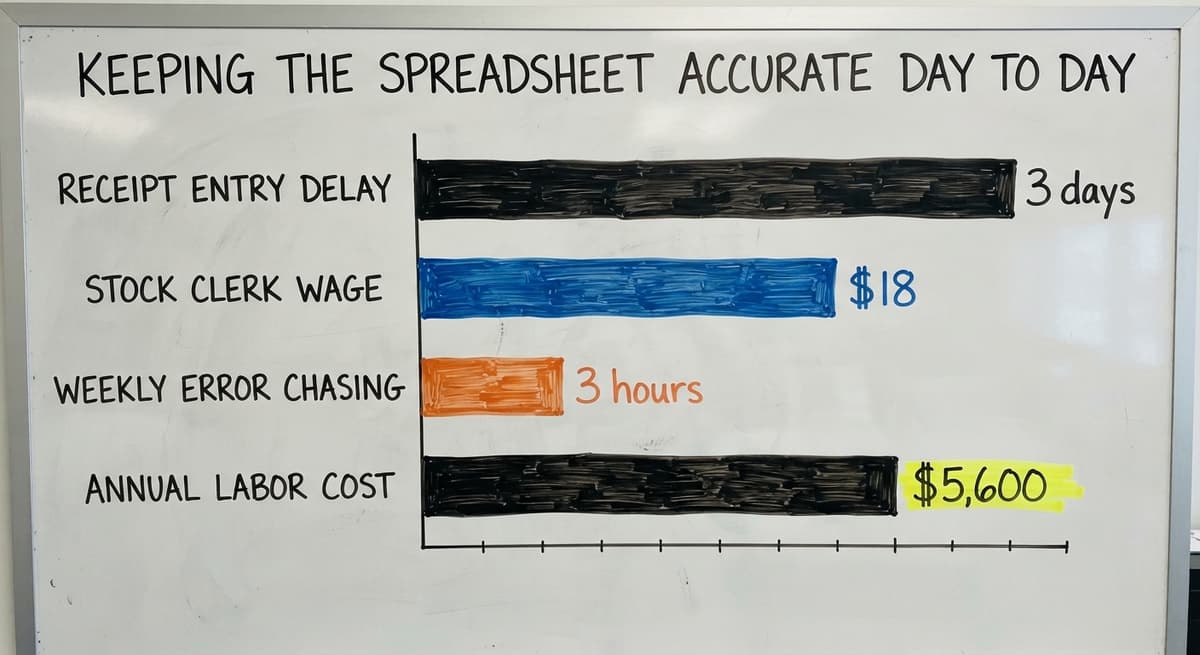
- Log every transaction the same day it happens. A receipt entered 3 days late is an error waiting to be discovered.
- Lock formula cells using Excel's sheet protection so staff enter data only in input cells.
- Run a spot-check each week on the 10 to 15 fastest-moving SKUs. Compare the spreadsheet number to a physical count and correct any gap before it grows.
The Bureau of Labor Statistics puts the median wage for stock clerks and order fillers near $18 an hour.
If 2 people spend 3 hours a week chasing errors that good habits would prevent, that is roughly $5,600 a year in labor spent on a process problem, not a volume problem.
Where Does Excel Inventory Control Work, and Where Does It Break?
Excel is a real tool for real operations. It works well when:
- Active SKUs stay under roughly 200
- 1 or 2 people handle all inventory entries
- Order volume is low enough that manual logging takes minutes, not hours
- The operation runs from a single location with no need for real-time visibility across sites
Past those boundaries, the limits become daily friction. Only 1 person can safely edit the file at a time. There is no automatic connection to the accounting software, your shipping platform, or your ordering system.
Entry errors accumulate and are hard to trace without a complete log. Version control becomes a problem the moment the file gets emailed to a second person, because now 2 versions exist and neither is clearly current.
These are not reasons to avoid Excel at the start. They are signals to watch as the operation grows.

Common Mistakes That Break Excel Inventory Systems
Most Excel inventory failures come from the same short list of habits:
- Typing directly into formula cells instead of the input cells the formulas read from, which silently breaks the calculation
- Saving multiple copies of the file with names like "inventory_final_v3_REAL" and losing track of which one is current
- Skipping the transaction log and adjusting quantities by hand, which means there is no record of why a number changed
- Not protecting sheets, so any staff member can overwrite any cell without realizing it
The fix for all of these is structure, not a smarter spreadsheet. Lock the cells that should not change. Name the file once and store it in one place. Make the transaction log non-negotiable.
What does it look like running on your own process?
The first thing you see is it running on your own process, at no build cost. The subscription starts once it is live and doing the job, not before.
Book a callHow Does Excel Inventory Tracking Work Alongside the Accounting Software?
The accounting software handles invoicing, accounts payable, and financial reporting. It does not handle warehouse detail well. It does not track bin locations, lot numbers, or the movement of individual units through a receiving dock.
Many wholesale distributors run both: the accounting software for the books, Excel for the warehouse. The gap between them creates duplicate entry.
A shipment gets logged in Excel, then someone manually enters the same data into the accounting software. An accounting integration removes that step, but a native Excel-to-accounting connection does not exist. The bridge is always manual export and import.
This workaround is manageable at low volume. At higher volume, the manual bridge becomes a daily burden. Staff spend time reconciling 2 systems instead of moving product.
The US Census Bureau's Monthly Wholesale Trade data tracks the inventories-to-sales ratio across the sector, and tighter ratios mean less room for the kind of matching delays a manual bridge creates.

Is Your Operation Outgrowing Excel for Inventory?
You have outgrown Excel when the spreadsheet creates more work than it saves. Watch for these signs:
- Staff spend more than an hour a day on data entry and matching
- Physical counts rarely match the spreadsheet, and no one can explain why
- An order ships late or gets missed because the file was out of date
- More than 2 people need to update the file at the same time
These are not Excel failures. They are volume and complexity signals. The NIST Manufacturing Extension Partnership offers vendor-neutral supply chain guidance that frames this transition clearly: the right tool matches the scale of the operation, and what fits at launch rarely fits at growth.
For more detail on reading these signals, see [Signs your operation needs software beyond spreadsheets](Signs your operation needs software beyond spreadsheets).
What Comes After Excel for a Small Distributor?
The step after Excel does not have to be a large ERP with a year-long setup and a six-figure price tag.
For operations with 5 to 100 staff, the right move is [custom warehouse management software for small operations](Custom warehouse management software for small operations) built around how the warehouse already works.
The key features to look for in a replacement:
- Connects to the accounting software without replacing it, so accounting stays intact
- Built around your workflow, not a generic process you must adapt to
- Measured in weeks to implement, not months
- Supported by a team that understands warehouse and distribution, not a generic help desk
The goal is to replace only the manual, error-prone parts of the current process.
The rest stays the same. That is a shorter jump than most owners expect, and it is a meaningfully different path from adopting a platform designed for a company 10 times your size.

Start Simple, Then Build What Your Operation Actually Needs
Excel is a legitimate starting point. Many operations run on it for years before volume makes the limits real. The goal is accurate inventory data, and if a spreadsheet delivers that today, use it.
When Excel starts creating more work than it saves, that is the signal. Not a reason to panic, and not a reason to buy the most expensive system on the market.
A custom system built around your existing process, one that keeps the accounting software in place and replaces only the broken parts, is closer than most owners think.
If you are hitting those limits now, a short conversation about what that could look like for your specific operation costs nothing.
The [Inventory management Excel template overview page](Inventory management Excel template overview page) is a good place to start if you want to build the spreadsheet first and evaluate from there.

Frequently Asked Questions
How can I control my inventory using Excel?
Build 4 tabs: an item list with a unique SKU for every product, a transaction log with one row per movement, a quantity-on-hand column driven by a running formula, and a dashboard with conditional formatting for low-stock alerts.
Assign one person to own the file, log every transaction the same day, and lock formula cells so they cannot be overwritten by accident.
Is there a free inventory management software available in Excel?
Excel itself is not free for most businesses, but the structure described in this article costs nothing beyond your existing license.
Excel's own template gallery has basic inventory templates, and free downloadable versions are a search away. None of them replace a purpose-built system, but they are a real starting point for low-volume operations.
Does Excel have an inventory template?
Yes. Excel includes basic inventory templates accessible from the File menu under New.
Search "inventory" in the template search bar. These templates give you a starting structure, but they rarely include a transaction log or SUMIF-driven quantity tracking. The 4-tab framework in this article is more complete than most built-in templates.
What is the best Excel template for inventory management?
There is no single best answer. The right template depends on whether you need lot tracking, multi-location support, or supplier lead time math.
For most small warehouses, the best template is one you build yourself using the structure in this article, because it matches your SKUs, your units of measure, and your reorder logic rather than a generic example.
How do I calculate reorder points in Excel?
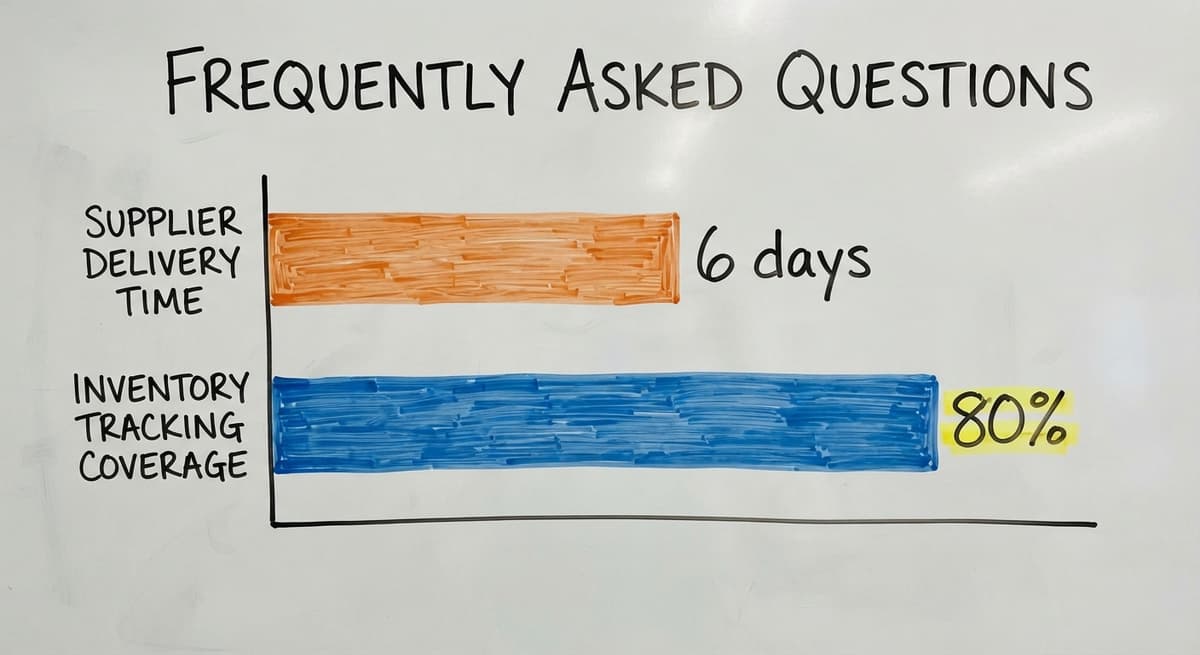
Multiply your average daily usage by your supplier's lead time in days. If you use 8 units a day and the supplier takes 6 days to deliver, your reorder point is 48 units.
Enter that number in your item list and use an IF formula to flag any SKU where quantity on hand falls below it.
Which Excel formulas are most useful for inventory tracking?
VLOOKUP and SUMIF do most of the work. VLOOKUP pulls item details into the transaction log by SKU. SUMIF totals receipts or shipments per SKU across the full log.
Conditional formatting is not a formula but handles low-stock alerts visually. These 3 tools together cover 80% of what a basic inventory tracking spreadsheet needs to do.
How many SKUs can Excel realistically manage?
Performance rarely degrades before a few thousand rows. Accuracy problems come much sooner.
Past roughly 200 active SKUs with regular movement, the manual entry burden and the risk of formula errors grow faster than most 1 or 2-person teams can manage. The ceiling is a people and process limit, not a software limit.
When should a small distributor stop using Excel for inventory?
Stop when staff spend more than an hour a day reconciling the file, when physical counts regularly disagree with the spreadsheet, or when more than 2 people need to edit the file at the same time.
Any one of those signals means the manual process is costing more than a purpose-built system would.
Frequently asked questions
How can I control my inventory using Excel?
Build 4 tabs: an item list with a unique SKU for every product, a transaction log with one row per movement, a quantity-on-hand column driven by a running formula, and a dashboard with conditional formatting for low-stock alerts.
Assign one person to own the file, log every transaction the same day, and lock formula cells so they cannot be overwritten by accident.
Is there a free inventory management software available in Excel?
Excel itself is not free for most businesses, but the structure described in this article costs nothing beyond your existing license.
Excel's own template gallery has basic inventory templates, and free downloadable versions are a search away. None of them replace a purpose-built system, but they are a real starting point for low-volume operations.
Does Excel have an inventory template?
Yes. Excel includes basic inventory templates accessible from the File menu under New. Search 'inventory' in the template search bar. These templates give you a starting structure, but they rarely include a transaction log or SUMIF-driven quantity tracking.
The 4-tab framework described in this article is more complete than most built-in templates.
What is the best Excel template for inventory management?
There is no single best answer. The right template depends on whether you need lot tracking, multi-location support, or supplier lead time math.
For most small warehouses, the best template is one you build yourself using the structure in this article, because it matches your SKUs, your units of measure, and your reorder logic rather than a generic example.
How do I calculate reorder points in Excel?
Multiply your average daily usage by your supplier's lead time in days. If you use 8 units a day and the supplier takes 6 days to deliver, your reorder point is 48 units.
Enter that number in your item list and use an IF formula to flag any SKU where quantity on hand falls below it.
Which Excel formulas are most useful for inventory tracking?
VLOOKUP and SUMIF do most of the work. VLOOKUP pulls item details into the transaction log by SKU. SUMIF totals receipts or shipments per SKU across the full log.
Conditional formatting handles low-stock alerts visually. These 3 tools together cover 80% of what a basic inventory tracking spreadsheet needs to do.
How many SKUs can Excel realistically manage?
Performance rarely degrades before a few thousand rows. Accuracy problems come much sooner.
Past roughly 200 active SKUs with regular movement, the manual entry burden and the risk of formula errors grow faster than most 1 or 2-person teams can manage. The ceiling is a people and process limit, not a software limit.
When should a small distributor stop using Excel for inventory?
Stop when staff spend more than an hour a day reconciling the file, when physical counts regularly disagree with the spreadsheet, or when more than 2 people need to edit the file at the same time.
Any one of those signals means the manual process is costing more than a purpose-built system would.
How do I create an inventory spreadsheet in Excel?
One row per SKU with columns for SKU, description, location, quantity on hand, unit cost, reorder point, and supplier, and a second sheet that logs every receipt and sale by date with a formula that sums them into the quantity column. Lock the SKU column and give the file one owner.
What Excel formula calculates current stock?
Opening count plus SUMIF of receipts for that SKU minus SUMIF of sales for that SKU, both read from the movement log. =C2+SUMIF(Log!A:A,A2,Log!C:C)-SUMIF(Log!A:A,A2,Log!D:D) is the whole thing, with the SKU in column A.
How do I set reorder levels in Excel?
Add a reorder point column, calculated as average daily sales times lead time in days plus safety stock, and a conditional format that turns the row red when quantity on hand drops below it. A filter on that colour is the reorder report.
Can Excel track inventory across multiple warehouses?
Excel can hold a column per warehouse, and that is where it stops: a transfer between sites is 2 manual edits, 2 people cannot update it at once, and no one can tell which copy is current. The second location is where most businesses move to software.
How can I add barcode scanning to an Excel inventory system?
A USB scanner types the code into the selected cell and presses Enter, so a movement log fills one row per scan. It records the scan; it does not check that it was the right cell or the right sheet, which is the reason scanning into Excel drifts within weeks.
What is in a free first look?
A 30 minute call, your operation mapped, and a clear picture of what we would build. No obligation and nothing to install.
Book a callRelated guides
The rest of this guide, for the parts of the job this page does not cover.
Guides
- Inventory Format in Excel
- Ms Excel Inventory Template
- Excel Inventory Template
- Types of Inventory Control
- Inventory Control Software for Small Business
- Inventory Control for Small Business
- Excel Barcode
- Procedure for Stock Control
- Types of Stock Control Systems
Common questions
- How to Stock Control
- Warehouse Management System vs Warehouse Control System
- What is E Inventory Management
- What is Roq in Inventory Management
- What is Barcoding in Inventory Management
- What is Online Inventory Management System
- What is Effective Inventory Management
- What is the Definition of Inventory Management
- What is Inventory Management Mary Kay
- What is Inventory Management Practices
- What is Fluctuation Stock in Inventory Management
- What is Abc Classification in Inventory Management
- What is the Purpose of Inventory in Operations Management
- How to Manage Food Inventory
- What is Sales and Inventory Management System