

Inventory Management Pics
Buying inventory software without seeing real screens is like renting a warehouse you have never walked through. Inventory management pics give your team a honest look at what daily work will feel like before you commit to anything. This page walks through the key screens your team will use, explains what good ones look like, and helps you spot the warning signs of a system that will frustrate rather than help.
Book a callWhy Inventory Management Pics Matter for Small Distributors
Visuals close the gap between a vendor's feature list and your actual warehouse floor. When your team sees a familiar workflow in a screenshot, they can at once judge whether the software fits their reality. That matters most for wholesale distributors, fulfillment centers, and small warehouses running lean crews where there is no IT department to absorb a bad software decision.
Reviewed September 2026. Figures are worked from the assumptions stated beside them, so you can substitute your own and the arithmetic still holds.
Abstract descriptions like "real-time stock visibility" mean nothing until you see the screen. A single clear screenshot tells you more than three pages of marketing copy. Pics also reduce fear before go-live. Staff who have already seen the screens arrive on day one with a head start instead of anxiety.
We build it for your operation, and the first look is free
If you would rather not compare products, describe how your operation already works and we build the system around it.
No build cost. You see it running on your own process first, and the monthly subscription starts only once it is live.
Book a callWhat to Look For in Inventory Management Pics
Not every screenshot is worth your time. The most useful inventory management pics reflect your operation size, not a Fortune 500 mega-warehouse with conveyor belts and robotic pickers.
Check these things when you review any screenshot:
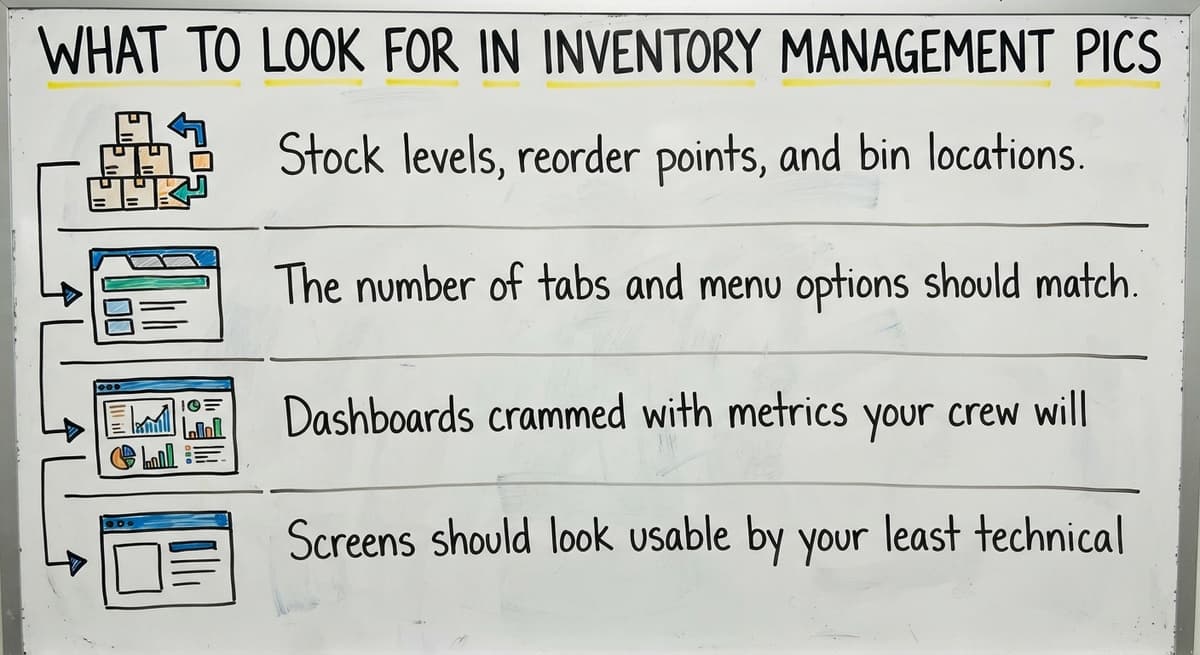
- Stock levels, reorder points, and bin locations should be readable at a glance without squinting
- The number of tabs and menu options should match your team's actual daily tasks
- Dashboards crammed with metrics your crew will never check are a warning sign, not a selling point
- Screens should look usable by your least technical team member without a week of training
Barcode standards matter here too. As GS1 explains in their barcode standards records, consistent labeling is what makes scanning reliable across suppliers and locations, so any screenshot showing a scan workflow should reflect that standard label format.
What Do Inventory Management Software Screens Actually Look Like?
A stock list screen is usually the first view your team sees every morning. It shows item name, SKU, quantity on hand, and shelf or bin location in one readable table. For small distributors, that single screen replaces three or four overlapping Excel tabs.
A clean stock list has no decorative elements. Rows are short. Status colors are obvious: green for healthy stock, yellow for low, red for out. Your receiving clerk and your operations manager should both be able to read it without asking for help. If a stock list screenshot looks like a spreadsheet someone tried to make pretty, keep looking.
What Is an Inventory Photo?
An inventory photo can mean two things. In a warehouse context, it refers to a screenshot or screen recording of inventory management software showing actual data fields like SKU, quantity, and location. In a product catalog context, it means a photograph of a physical item used for spotting or listing purposes. This page focuses on the first meaning: software screens that show how stock is tracked and managed.

Receiving, Put-Away, and Pick Pack Ship Screens
Receiving screens show a staff member matching an inbound shipment against an open buy order. The screen displays expected items, quantities, and any discrepancy flagged in real time. Put-away images follow: once items are checked in, the system assigns a bin or shelf location so nothing gets set down in a random spot and lost.
How Pick, Pack, and Ship Screens Retire Manual Workflows
Pick, pack, and ship screens carry that logic forward to outbound orders. A pick list tells your warehouse staff exactly which item to pull and from which location, in the most efficient sequence. The pack screen confirms counts before a box is sealed. The ship screen generates a label and updates order status automatically. That three-step visual flow is worth more than any feature description because it shows precisely how manual email chains and printed pick sheets get retired. When you see all three screens in sequence, you can judge in minutes whether the workflow matches how your team already moves.
The comparison is easier when one option is built for you
Off-the-shelf means fitting your process to the software. We do it the other way round, and the first look costs nothing.
Book a call
How Do Reorder Point Alerts Appear in Inventory Management Software?
A reorder point alert screen flags an item the moment its quantity on hand drops below the threshold you set. The alert shows the item name, current quantity, your reorder point, and the preferred supplier in one row. No digging through a spreadsheet every morning. No forgetting to check. This single feature delivers the most immediate value for small wholesale distributors because it replaces a daily manual habit with an automatic alert. Good alert screens are simple: a short list of flagged items, sortable by urgency, with a direct link to create a buy order from the same view.
What Are the 5 Stages of the Inventory Management Process?
The five stages are: (1) purchasing or receiving stock from a supplier, (2) storing items in assigned locations, (3) picking items to fulfill an order, (4) shipping the order to the customer, and (5) reporting on what was sold, what remains, and what needs to be reordered. Good inventory management software shows a distinct screen for each stage so nothing falls through the cracks between steps.

Cycle Count Screens and Multi-Location Inventory Tracking
Cycle count software replaces the full annual shutdown count with a rolling daily schedule. Each day, staff count one section of the warehouse. The screen shows which area is due, what the system expects to find, and captures the physical count. A variance report then highlights any discrepancy so it can be investigated before it compounds.
For small warehouses, this approach is especially practical because a full shutdown is expensive and disruptive. Before-and-after pics tell the story clearly: a clipboard with a printed count sheet on one side, a tablet showing the same task on the other.
Multi-location tracking adds another layer. If you run a main warehouse plus a satellite or overflow space, the screen shows stock split by location and tracks transfers between them. The goal is that neither location is ever guessing what the other one holds.
What Does a QuickBooks-Connected Inventory Screen Look Like?
A QuickBooks-connected inventory screen shows the handoff point between two systems doing different jobs. The inventory side handles warehouse activity: receiving, picking, stock levels, buy orders. QuickBooks handles the financial side: invoices, payments, cost of goods. The connection means that when a shipment is received in the warehouse system, the cost posts to QuickBooks automatically. For owners who are not ready to leave QuickBooks, this is the most reassuring screenshot you can see. It proves the two systems talk to each other rather than requiring you to enter the same data twice. QuickBooks integration for distributors works best when the warehouse software is purpose-built to hand off clean data, not to compete with the accounting layer.

What Does a QuickBooks Sync Status Screen Show?
Screens showing this connection usually display a sync status indicator, a log of recent transfers, and a field mapping view so you can confirm that your item codes match on both sides.
See it running on your own process first
No build cost. The subscription starts once it is live and doing the job, not before.
Book a callWhat Are the Four Main Types of Inventory Management?
The four main types are: (1) periodic inventory, where stock is counted on a set schedule; (2) perpetual inventory, where every transaction updates the count in real time; (3) just-in-time inventory, where stock arrives only as it is needed to reduce holding costs; and (4) batch or lot tracking, where groups of items are traced together from receipt through sale. Most small warehouse software supports perpetual inventory with optional lot tracking for regulated products.

Barcode Scanning, Lot Tracking, and PO Management Screens
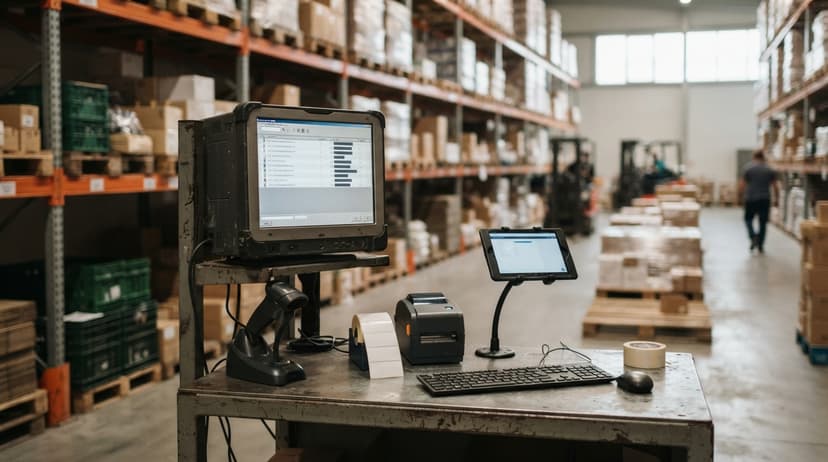
Barcode scanning pics in a realistic small-warehouse setting show a staff member holding a handheld scanner or a mobile device, reading a shelf label or an inbound carton. The screen updates at once. No hand-keyed entry, no transposed digits. Even a five-person operation benefits from scan-to-receive and scan-to-pick because the errors that scanning removes are exactly the ones that cause customer complaints and inventory discrepancies. Barcode scanning software for warehouses does not need a sophisticated setup to deliver that result.
What Do Lot Tracking and PO Management Screens Show?
Lot and serial number tracking screens sit alongside scanning in regulated categories. A lot tracking view shows which batch an item came from and every location it touched. Serial number screens go one level deeper, tracing a single unit from receipt to delivery. For distributors in food, medical supply, or other regulated categories, a quality issue that once took days to trace can be resolved in minutes with the right screen. Buy order management screens complete this cluster. An open PO view shows every outstanding order, the expected delivery date, and quantities still in transit. When a shipment arrives, the receiving screen pulls from that PO automatically so staff know exactly what they are checking in.

Pics of Inventory Reports, Dashboards, and Mobile Access
A stock tracking dashboard built for a small operation shows three or four metrics: current stock value, items below reorder point, open orders, and top sellers. That is enough. An inventory dashboard that tries to show everything ends up communicating nothing. Report screens add depth: turnover rates by SKU, slow-moving items tying up cash, and supplier lead times averaged over recent orders. The most useful report pics show data that drives a decision, not data that fills a screen.
What Does Mobile Inventory Access Look Like on the Warehouse Floor?
Mobile inventory access extends all of this to the warehouse floor. A tablet or phone interface built for warehouse use has large text, high contrast, and buttons sized for gloved hands. Staff can receive a shipment, look up a bin location, or complete a cycle count section without walking to a desk. Custom warehouse software for small operations tends to look simpler on mobile precisely because it was built around real tasks, not around a feature checklist.

What Is the Difference Between a Custom Inventory Screen and a Generic ERP Screen?
Side-by-side, the difference is immediate. A generic ERP screenshot shows dozens of tabs, nested menus, and fields that apply to industries your business has nothing to do with. A custom-built screen shows the fields your team uses every day and nothing else. Small warehouse software built for your operation does not need a manufacturing module, a multi-currency ledger, or a vendor portal built for enterprise procurement. Those features add visual weight and training time without adding value for a wholesale distributor running a lean crew. The visual simplicity of a purpose-built screen is not a limitation; it is evidence that the software was designed for someone like you rather than for every possible user across every possible industry. Wholesale distributor software solutions that fit your workflow will look familiar from the first screenshot.
Not sure this is the right shape for your operation
Describe how the work runs today. We map it on a call and show you what it would look like built around that, before you spend anything.
Book a callWhat Is the 80/20 Rule in Inventory?
The 80/20 rule in inventory, also called the Pareto principle, holds that roughly 80 percent of your revenue comes from 20 percent of your SKUs. In practice, it means your top sellers deserve tighter tracking, faster reorder cycles, and prime shelf locations, while slow-moving items may need to be reduced or discontinued. A good inventory dashboard surfaces this split automatically so you can act on it without pulling a custom report.
Where Can I Find Reliable Inventory Management Pics Before Committing to Software?
Software vendor websites and demo videos are the most reliable source of real inventory management screenshots because they show the actual product. Google Images and stock photo sites mostly surface outdated or staged interfaces that do not reflect what you would actually use.
YouTube walkthroughs give you moving versions of the same screens, which is especially useful for understanding navigation flow. The most direct option is asking your software provider for a sandbox login so you can click through the real interface yourself before any contract conversation.
A vendor who hesitates to show you real screens is telling you something important about the product.
How to Evaluate Inventory Management Pics and Get Your Team On Board
When reviewing any screenshot, run through four questions:
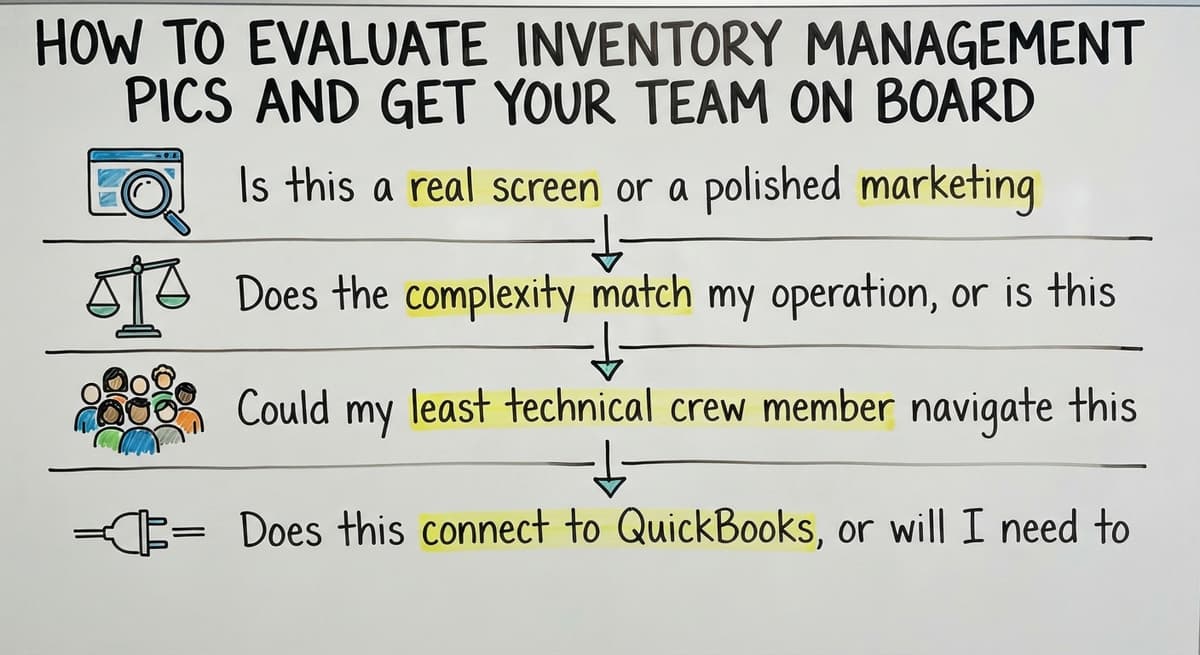
- Is this a real screen or a polished marketing mockup with fake data?
- Does the complexity match my operation, or is this built for a much larger team?
- Could my least technical crew member navigate this in under a day?
- Does this connect to QuickBooks, or will I need to keep two separate sets of records?
How Screenshots Help Your Team Adopt New Inventory Software
Showing staff screenshots before go-live is one of the lowest-cost ways to improve adoption. Familiar-looking screens lower the learning curve on the first morning. Pics in training materials help staff remember where each feature lives faster than any written manual. The before-and-after comparison is especially persuasive for this audience. A cluttered Excel sheet next to a clean stock list screen, or a printed pick list next to a mobile pick screen, tells the value of custom inventory software for small business without requiring a single word of explanation. Your team recognizes the pain in the before image, and that recognition does more persuasive work than any feature list.
Ready to See What This Looks Like for Your Operation?
The Software Society builds inventory management software shaped around your actual floor layout, your team's daily tasks, and the QuickBooks setup you already rely on. No bloated ERP. No feature overload. Just the screens your crew will use every day.
If you are based in the Columbus, Ohio area, you can walk through screens together in person. If you are not, a live screen walkthrough built around your specific workflow is the next best step.
Request a demo focused on the exact screens your team will touch. No contract pressure. No generic slide deck. Just real screens matched to your real operation.
Frequently asked questions
What is an inventory photo?
An inventory photo can mean two things. In a warehouse context, it refers to a screenshot or screen recording of inventory management software showing actual data fields like SKU, quantity, and location. In a product catalog context, it means a photograph of a physical item used for spotting or listing purposes. This page focuses on the first meaning: software screens that show how stock is tracked and managed.
What are the 5 stages of the inventory management process?
The five stages are: (1) purchasing or receiving stock from a supplier, (2) storing items in assigned locations, (3) picking items to fulfill an order, (4) shipping the order to the customer, and (5) reporting on what was sold, what remains, and what needs to be reordered. Good inventory management software shows a distinct screen for each stage so nothing falls through the cracks between steps.
What are the four main types of inventory management?
The four main types are: (1) periodic inventory, where stock is counted on a set schedule; (2) perpetual inventory, where every transaction updates the count in real time; (3) just-in-time inventory, where stock arrives only as it is needed to reduce holding costs; and (4) batch or lot tracking, where groups of items are traced together from receipt through sale. Most small warehouse software supports perpetual inventory with optional lot tracking for regulated products.
What is the 80/20 rule in inventory?
The 80/20 rule in inventory, also called the Pareto principle, holds that roughly 80 percent of your revenue comes from 20 percent of your SKUs. In practice, it means your top sellers deserve tighter tracking, faster reorder cycles, and prime shelf locations, while slow-moving items may need to be reduced or discontinued. A good inventory dashboard surfaces this split automatically so you can act on it without pulling a custom report.
How do I know if an inventory management software screen is too complex for my team?
If your least technical team member cannot identify the action they need to take within 30 seconds of looking at a screenshot, the screen is too complex for your operation. Warning signs include more than five navigation tabs visible at once, fields that do not apply to your product type, and dashboards that need scrolling to reach the data your team checks daily.
Can I see real inventory management software screens before committing to a system?
Yes. Ask any vendor for a sandbox login or a live screen walkthrough using your own item types and workflow. YouTube demo videos are a useful starting point, but a live session where you can ask questions about specific screens is more reliable. Vendors who only provide polished marketing graphics and decline to show a working interface are worth treating with caution.
What does a QuickBooks-connected inventory screen look like?
A QuickBooks-connected inventory screen usually shows a sync status indicator, a log of recent data transfers between the two systems, and a field mapping view confirming that item codes align on both sides. The inventory system handles warehouse activity like receiving and picking, while QuickBooks handles invoicing and cost posting. The connection removes double entry rather than replacing either system.
What does barcode scanning look like in a small warehouse setting?
In a realistic small-warehouse setting, barcode scanning involves a staff member holding a handheld scanner or mobile device and reading a shelf label or inbound carton. The inventory screen updates the quantity at once without any manual entry. The interface is simple: a confirmation message, a quantity field, and a next-item prompt. Even a five-person warehouse can implement scan-to-receive and scan-to-pick without specialized infrastructure.
Start with a free first look
A 30 minute call, your operation mapped, and a clear picture of what we would build. No obligation and nothing to install.
Book a callRelated guides
The rest of this guide, for the parts of the job this page does not cover.
Guides
- Multi Location Inventory Management Software
- Inventory Management for Multiple Locations
- Inventory Management System for Manufacturing
- Jewelry Inventory Management
- Dental Inventory Management
- Qr Code for Inventory Management
- Hvac Inventory Management Software
- Inventory Management Software for Schools
- Nonprofit Inventory Management
- Manual Inventory Management
- Inventory Management Photos
- Inventory Management Software Costs
- Hvac Inventory Management
- Warehouse Inventory Management Software
- Warehouse Inventory Management Systems
- Quickbooks Inventory Management Software
- Inventory and Warehouse Management Software
- Custom Inventory Management Software
- Warehouse Inventory Management System
- Retail Inventory Management